Guides
How to Join a Minecraft Bedrock Server on Xbox, Switch, & PlayStation
Whether you’re playing Minecraft Bedrock on Xbox, Nintendo Switch, PS4, or PS5, there are many different ways to join a server. Some involve changing your DNS settings while others use third-party apps. With many methods to join your Bedrock server, which one is the best for you?
Our expert will answer this question for you, because it can be confusing when you first get started. With years of experience and knowledge, he will find the best method for your console! Joining your Minecraft Bedrock server will be easy, no matter the device 👏
Before anything, find your server details. Do that by accessing your Nitrado Web Interface. From your Dashboard, you should see the IP Address and Port for your server. Make sure to save this information for later, as you will need it to join. E.g. 123.456.78.90 is the address, while 25695 is the port. Bedrock dedicated servers have a default port: 19132.
Which Method is Best?
There are two methods: DNS Configuration & Third-party Tools (Apps & Bots).
Honestly, it depends. We highly encourage you to try the DNS method, as it’s more of a permanent solution to always join your Minecraft Bedrock server. On the other hand, using third-party apps is simpler and more straightforward. The downside is that you likely have to watch ads before using the app.
Using the BedrockTogether Bots method is probably the easiest way to join your server. The main issue with it is that some bots can be at full capacity, so you would need to add another bot if you run into problems. This is still quicker than any other method, so – it’s up to you.
We asked one of our experts which method is best to join a Minecraft Bedrock server:
“I’m an old player, so the DNS method was the only one available during that time. It gets the job done and only requires a one-time setup. Although, using apps or even bots nowadays make the process to join a Bedrock server a lot easier. If you’re worried about messing up DNS settings, then use BedrockConnect or BedrockTogether. It’s simple, quick, and lets you connect without any problems.” – Nathan, Nitrado Minecraft Expert.
Method 1: DNS Configuration
Alright, this method involves using a primary DNS IP address that is closest to your geographic location. Some of these IPs are from BedrockConnect, an open-source tool (not the app). When you get everything configured, you will be able to view a custom menu in-game to join Bedrock servers.
This is a great way to join if you don’t want to use third-party apps or are worried about editing DNS settings. The upside to this method is that it’s a one-time setup, meaning you don’t have to redo it each time you connect. However, you can always skip to Method 2 if you want a more simpler process.
1. Choose a DNS IP Address
Pick a primary DNS address closest to your region for the best connection speeds:
| IP Address | Location | Notes |
|---|---|---|
104.238.130.180 |
United States | Standard address (can occasionally be problematic for some players). |
45.55.68.52 |
United States | Reliable alternative choice for US players. |
207.244.229.200 |
United States | Located in the Central US; best for mid-region players. |
217.160.58.93 |
Germany | Dedicated BedrockConnect server (no secondary DNS service). |
134.255.231.119 |
Germany | Alternative choice for European players. |
213.171.211.142 |
United Kingdom | Dedicated BedrockConnect server (no secondary DNS service). |
2. Configure Your Console Network Settings
Xbox Consoles
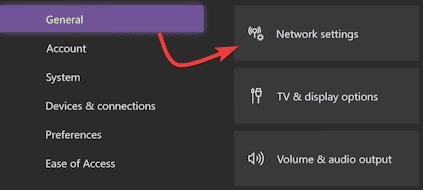
- Open your Xbox Settings, navigate to
General, and selectNetwork Settings.
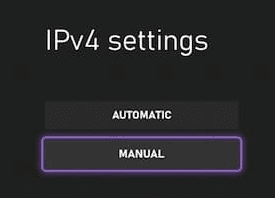
- Go to
Advanced Settings, chooseDNS Settings, and selectManual.
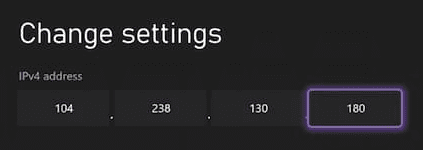
- Change the
Primary IPv4 Addressto your chosen IP from the table above.
- For the
Secondary IPv4 DNS, enter8.8.8.8or1.1.1.1.
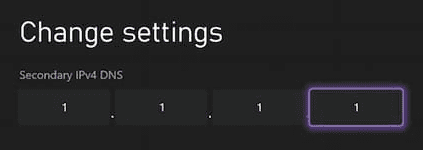
- Save changes and let the console run its connection test.
Nintendo Switch
- From the home screen, open
System Settings. - Scroll down to
Internetand selectInternet Settings.
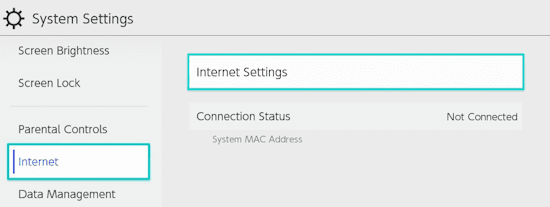
- Select your current Wi-Fi network and click
Change Settings. - Scroll to
DNS Settingsand switch it toManual.
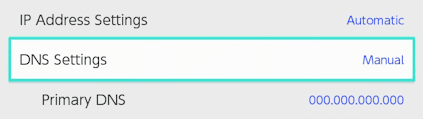
- Enter your chosen address in the
Primary DNSfield. - Change the
Secondary DNSto8.8.8.8or1.1.1.1.
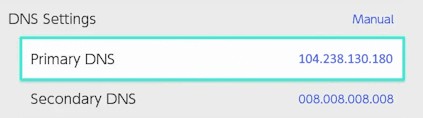
- Click
Saveon the right side of the screen.
PlayStation
- Navigate to
Settings > Network > Set Up Internet Connection. - Highlight your connection, press
Options, and chooseAdvanced Settings(or selectCustom Setupon PS4). - Set
DNS SettingstoManual. - Set the
Primary DNSto104.238.130.180(or another reliable option from the table). - Set the
Secondary DNSto8.8.8.8. - Leave other settings at default and save.
3. Joining a Bedrock Server
Once your DNS is configured, follow these identical steps on all consoles to connect:
- Launch Minecraft and click
Play. - Navigate to the
Serverstab and click to join any featured servers on the list. - Instead of loading the featured server, a menu will appear.
- Click
Connect to a Serverat the top.
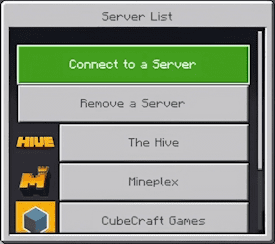
- Type in your custom
Server AddressandPort. - Toggle
Add to Server Listso you don’t have to type it next time, then clickSubmit.
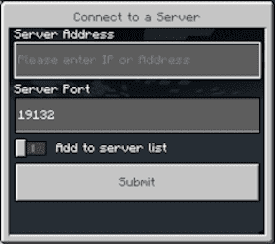
Note: To revert your console back to standard operation at any time, just return to your network settings and change DNS from Manual back to Automatic.
Method 2: Third-party Tools (Apps & Bots)
If all of that DNS configuration seems too confusing or simply doesn’t work for you, then don’t worry! You have plenty of other options to join a Bedrock server on your console. There are a lot of third-party apps, programs, and methods to do that. We don’t want to overwhelm you, so we picked the best ones. Unfortunately, you will likely have to watch ads to use these apps.
Option A: BedrockConnect App
- Download BedrockConnect on your phone (iOS & Android).
- For Xbox & PlayStation: Review the instructions here.
- For Nintendo Switch (iOS only): Review the steps here.
If you use Android mobile devices and Nintendo Switch consoles, go to Option C.
Option B: BedrockTogether App
- Download BedrockTogether on your phone (Android only).
- Open the app, enter your desired server IP and port.
- Tap the
Runbutton down below. - Open Minecraft and go to the
Friendstab. - Join the server from the
LAN gameslist. - Close BedrockTogether once your console has joined the server.
Option C: BedrockTogether Bots
- Head towards the BedrockTogether Bots list and pick one.
- Open Minecraft and add the bot as a friend in-game.
- Join the bot’s game from your friends list.
- In the Hub, add your server and join.
This works for all consoles, including Nintendo Switch and does not involve any apps.
Common Issues
Here are some problems you might encounter while following instructions to join a server:
Featured Servers Load Normally (Custom Menu Missing)
If you click on a featured partner server and it actually logs you into that server instead of opening the secret BedrockConnect menu, your DNS redirection isn’t catching.
- Force a refresh: Minecraft loves to cache server data. Back out to the main menu entirely, wait a few seconds, and reopen the
Serverstab to force the game to reload the network settings. - Double-check the digits: A single misplaced period or wrong number in your
Primary DNSwill cause your console to silently fail and revert back to its default internet routing. - Check for IPv6 interference: Many modern routers use
IPv6protocol, which can sneak past your customIPv4DNS settings. If your console lets you disableIPv6, try turning it off. If not, you may need to type the custom DNS addresses directly into your home router’s settings page instead of just the console.
Server Not Appearing Under LAN Games
When using the BedrockTogether app, your custom server is supposed to masquerade as a local game on your network, but sometimes it refuses to show up in the Friends tab.
- Match your Wi-Fi bands: For this trick to work, your phone and your console must be on the exact same network. If your home router splits your Wi-Fi into separate 2.4GHz and 5GHz channels, make sure both devices are connected to the exact same one.
- Keep the app active: Do not close, minimize, or let your phone screen lock while trying to connect. The app must actively run in the foreground until your console completely finishes loading into the Minecraft world.
“Unable to Connect to World” Error
If you successfully made it to the custom menu, typed in your details, and got hit with this classic error message, the network bridge is fine, but the server itself isn’t responding.
- Verify the server status: Head back to your Nitrado Web Interface and confirm that the green
Started/Onlinestatus is active. If the server is booting up or crashes, you will get blocked here. - Inspect the Port number: It is incredibly easy to typo the port. Ensure you didn’t accidentally leave the default
19132in the field if your specific Nitrado server assigned you a custom 5-digit port number.
Servers Tab Displays “Coming Soon”
This is a notorious, long-standing Minecraft bug that frequently locks Nintendo Switch players out of the server menu entirely.
- Trigger a manual reload: Repeatedly back out to the Minecraft title screen and open the
Serverstab. Sometimes it takes three or four attempts to wake the menu up. - Re-authenticate your account: Go to the in-game settings, sign out of your Microsoft Account, completely close and restart Minecraft, and then sign back in. This forces the game to rebuild its handshake with the server lists.
Which Method is Best?
Method 1: DNS Configuration
- 1. Choose a DNS IP Address
- 2. Configure Your Console Network Settings
- 3. Joining a Bedrock Server
Method 2: Third-party Tools (Apps & Bots)
- Option A: BedrockConnect App
- Option B: BedrockTogether App
- Option C: BedrockTogether Bots
Common Issues
- Featured Servers Load Normally (Custom Menu Missing)
- Server Not Appearing Under LAN Games
- “Unable to Connect to World” Error
- Servers Tab Displays “Coming Soon”