Guides
Upload Your Own Minecraft Modpack
Hosting your own Minecraft servers opens the doors for lots of customization, such as installing your own modpack. The process can be confusing for newcomers, especially since it involves uploading files to your server. Whether you want the latest version of Forge, NeoForge, or Fabric, you can easily set that up. In this Nitrado guide, we’ll show you how to upload your own custom modpack on your Minecraft server.
Modpack Preparation
Locate the mods from your own modpack, which are likely going to be in the “mods” folder. Whether you have a CurseForge or Modrinth profile or them already installed on your launcher, make sure to have the mods ready. Keep in mind that some mods are only for clients, not servers. You will only need to upload the mods to your Minecraft server to install the modpack.
Make sure to do one of the following:
- Locate your mods for the modpack (CurseForge, Modrinth, Minecraft Launcher, etc.)
- Download the server pack of the modpack, if available – then find the mods folder.
When you find the mods, keep them easily accessible for the server installation.
Server Preparation
Your Minecraft server needs to be running the same mod loader as your modpack. If you have Forge, then use that on the server so the mods can run properly. The same applies for NeoForge and Fabric.
Only follow these steps if your server is not modded:
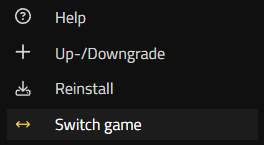
- Head towards your Nitrado Web Interface for the Minecraft server.
- At the bottom left corner, select the
Switch Gameoption.
- Search for your mod loader, e.g. “Minecraft (Modpacks)” for Forge or Fabric.
- Select the correct game version for your mod loader that is used in the modpack.
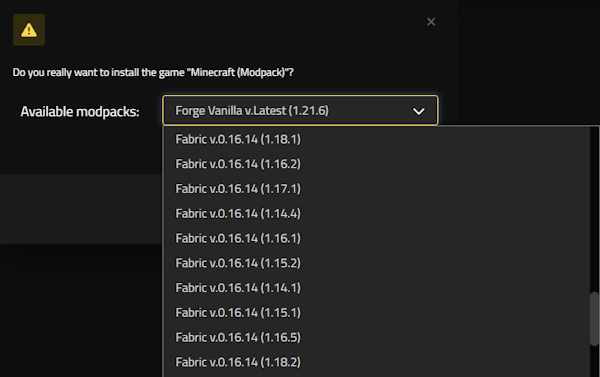
- Afterwards, click
Installand wait for the server to install it.
How to Install Your Own Modpack
The process to install your own modpack on the Minecraft server is easy! However, it does require a third-party program due to file size upload restrictions in the web interface. Download FileZilla Client or CyberDuck, used to transfer files to your server.
Stop your Minecraft server and follow these instructions:
- In your Nitrado Web Interface, locate FTP Credentials from the Dashboard.
- Copy the
Hostname,Port,Username, andPasswordfields.
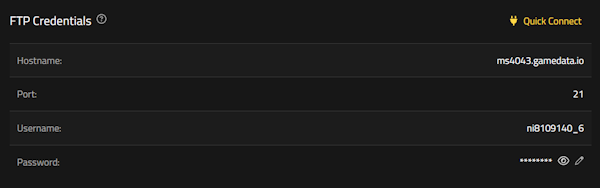
- Open FileZilla or CyberDuck, then enter each field accordingly to login.

- Once successfully logged in, navigate to
minecraftotherpacks>modsin the directory. - Drag + drop all the mod files from your own modpack into this folder.
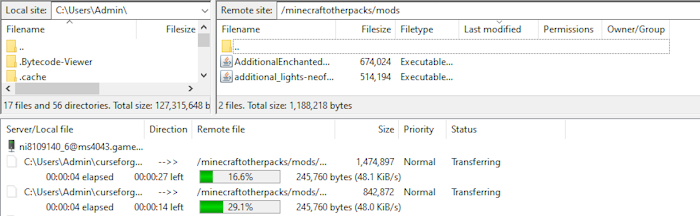
- Wait for everything to finish uploading, then return to your Nitrado Web Interface.
- Start up the server and when it comes online, try joining with your modpack.
*If your modpack requires configs or other files, make sure to upload them too in corresponding folders. For example, config files are stored in the “config” directory.
FAQ – Custom Modpacks
Where are the mods located for my own modpack?
The location depends on how you downloaded or created the modpack.
- CurseForge: Navigate to your modpack and click the three dots, then click Open Folder.
- Modrinth: Navigate to your Library and right-click the modpack, then click Open Folder.
- Minecraft Launcher: Head towards Installations and click the Folder Icon for your modpack profile.
If you used another launcher or method to download the modpack, check there and open the core files to find the mods.
How can I confirm the mod loader version for my modpack?
You can do that by checking the modpack’s page details, such as on CurseForge or Modrinth. Otherwise, you can manually find out by checking the mod file names to see if they list any game version like 1.16.5 or 1.21.
Is there a server pack for my modpack?
In some cases, a modpack will offer a server pack to download instead. You can typically find these where you normally download them on CurseForge or Modrinth, located in the Files or Versions. Otherwise, it will be listed in the description.
I cannot login using FileZilla or CyberDuck, now what?
Firstly, double-check if you’re using the correct Hostname, Port, Username, and Password. Next, make sure you downloaded FileZilla Client or CyberDuck properly for your computer. Only use FTP, not SFTP if prompted. If any firewall or antivirus software is preventing this third-party program from running, temporarily disable it to see if that works.
Why is my Minecraft server not online after installation?
Check the Live Server Console from your Dashboard to see if any specific mod(s) are crashing the server. If you notice it is crashing because of that, remove the problematic mod from the server and try again. Otherwise, you might need to double-check the mod loader version you installed on the server to see if it’s compatible with your own modpack.
You can always contact our Support Team to see if they can assist you with the server.
Why can’t I join my modded Minecraft server?
If the server is online and running, make sure to use the same modpack on your launcher to join. However, errors may occur such as mismatched modlist or incompatible versions. All mods must match on the server and client for connections to work, minus any client-only mods. They also must match the same mod loader version too.
- Modpack Preparation
- Server Preparation
How to Install Your Own Modpack
- FAQ – Custom Modpacks