Guides

Palworld Server Settings Guide
A Palworld server on Nitrado ships with dozens of settings spread across the General area of the control panel, from server identity and player slots to Pal behavior, PvP rules, and backups. Knowing exactly where each setting lives saves you from digging through menu after menu just to change one field. In this Nitrado guide, we’ll walk you through every settings section in the Nitrado Web Interface for your Palworld server, from finding the right menu to the specific defaults inside each one.
Finding Your Palworld Server Settings
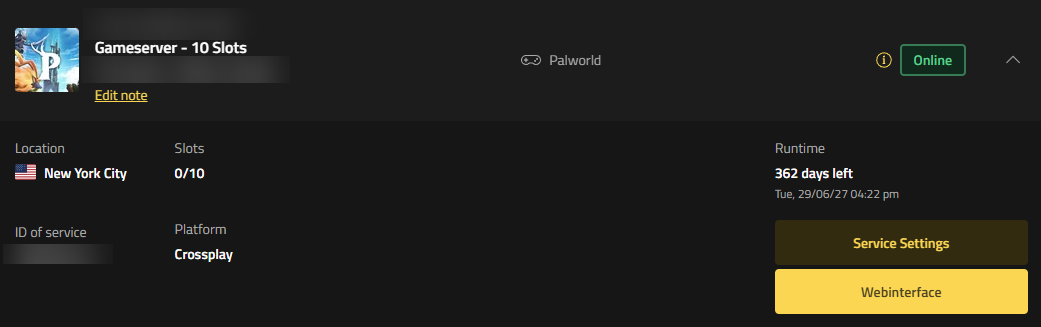
All of the settings in this guide live in the Web Interface for your Palworld server. Start in My Services, find your Palworld server, and click Web Interface to open the control panel.
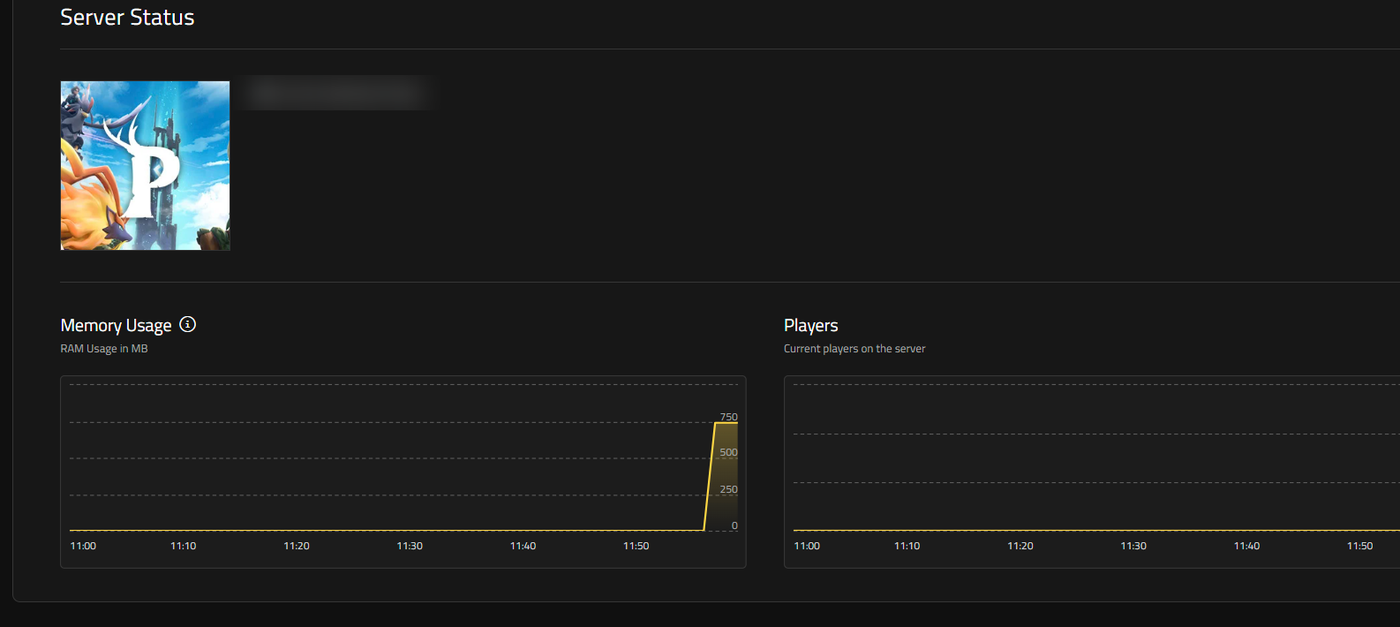
The Web Interface opens on the Dashboard, which shows your server status and live memory and player graphs. Check here to confirm the server is running before you start changing settings.
To reach the settings covered in this guide, open Settings and select General. That takes you to the difficulty and gameplay options, including the General, Gameplay, Player, Pal, Guild, PvP, Build, and Collection sections this guide walks through in turn.
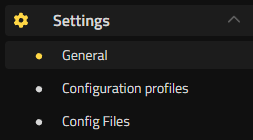
Two more sections of the Settings menu are useful alongside these. Configuration profiles saves and restores full sets of settings, and Config Files edits raw configuration files directly.
General Settings
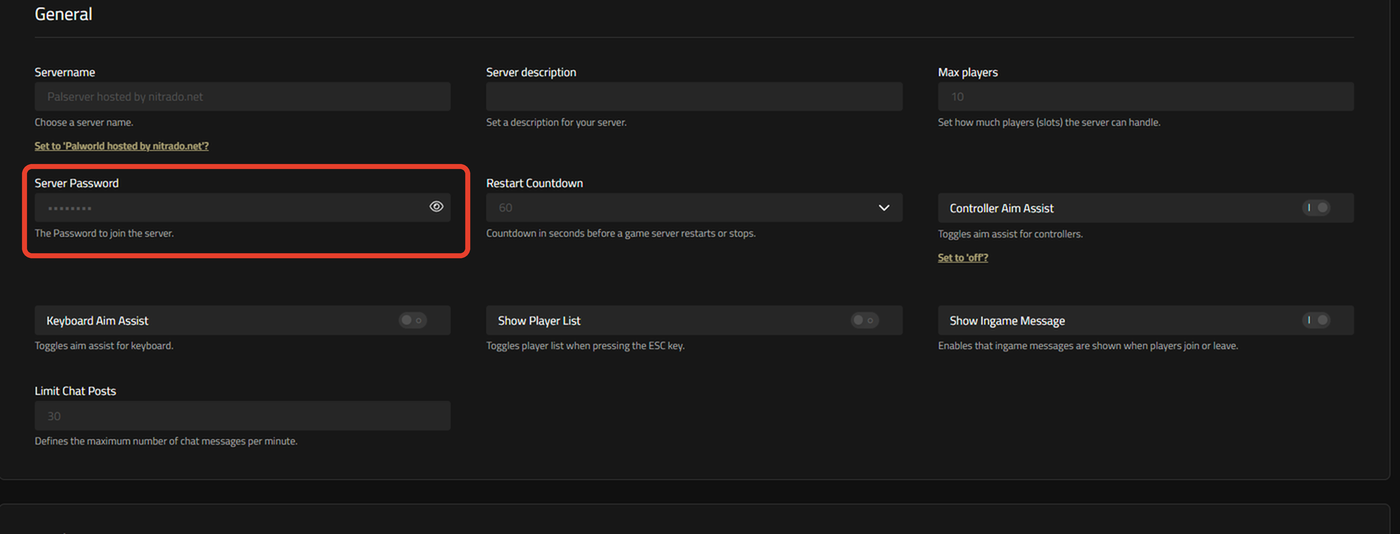
The General section covers the basics: server identity, password, restart behavior, and a handful of player-facing settings. You’ll find it under Settings > General.
Use Servername to set the name players see in the server browser. The default value on a new server is “Palserver hosted by nitrado.net”. Server description is empty by default and lets you add extra details about your server.
Max players sets how many player slots the server can handle, with a default of 10. This controls the maximum number of concurrent players allowed on the server.
Server Password is the password required for a player to log in to the server. Enter it here to require a password before players can join.
Restart Countdown sets the countdown, in seconds, before the game server restarts or stops, with a default of 60 seconds. This mirrors the server’s Shutdown command, which lets an admin specify a number of seconds. The server then shuts down only after that time has elapsed, rather than immediately.
Controller Aim Assist and Keyboard Aim Assist are both off by default. Controller Aim Assist enables aim assist for players using game pads such as controllers, and Keyboard Aim Assist enables aim assist for players using mouse and keyboard.
Show Player List is off by default. Turn it on to add the player list to the in-game ESC menu. Show Ingame Message is also off by default; on dedicated servers, it shows an in-game message when players join or leave.
Limit Chat Posts has a default of 30. It defines the maximum number of chat messages allowed per minute.
Gameplay Settings
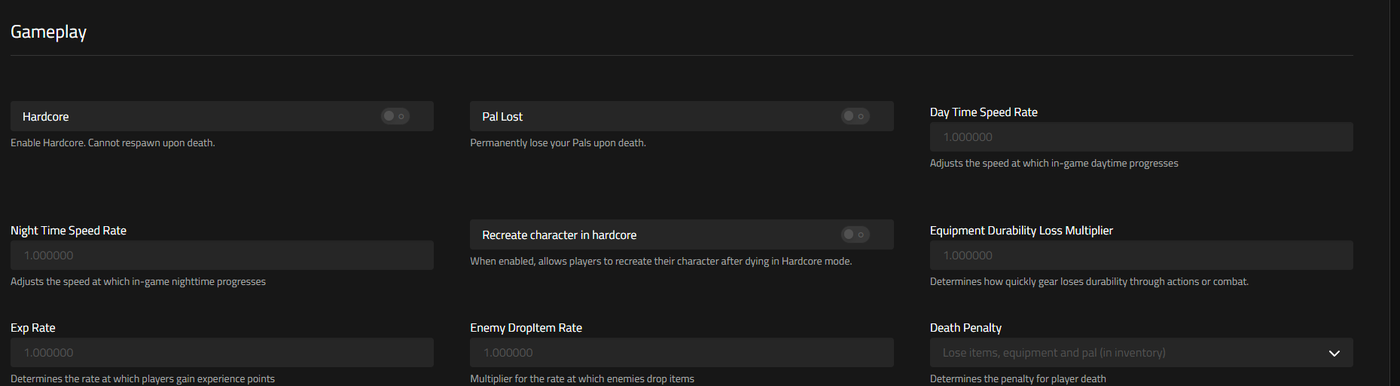
The Gameplay section is the largest section in the Web Interface, holding around thirty rate settings. Its top rows control hardcore behavior, day and night speed, experience gain, and what happens when a player dies.
Hardcore is off by default. Turn it on to remove the ability to respawn after death, making death permanent for that character. Pal Lost is a separate setting, also off by default, that causes a player to permanently lose their Pals when that player dies.
Recreate character in hardcore is off by default. Turn it on to let a player create a new character and continue playing after dying in Hardcore mode, instead of being permanently locked out.
Equipment Durability Loss Multiplier has a default of 1.000000. It scales how quickly equipped gear loses durability during use.
Enemy DropItem Rate has a default of 1.000000, a multiplier that controls how many items defeated enemies drop.
Day Time Speed Rate
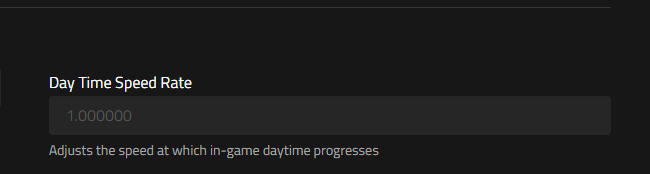
Day Time Speed Rate has a default of 1.000000. It’s a multiplier that controls how quickly the in-game daytime cycle progresses. You can set it independently from Night Time Speed Rate, so you can run daytime at normal speed while speeding up or slowing down nighttime separately.
Night Time Speed Rate
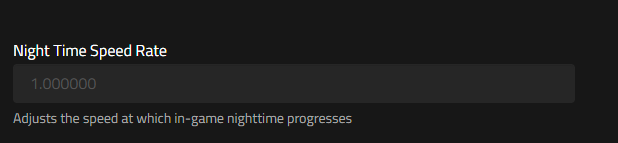
Night Time Speed Rate has the same default of 1.000000. Raising it above 1.0 shortens how long in-game night lasts without changing the length of daytime. This is a common way to reduce nighttime difficulty on a server without touching daytime pacing.
EXP Rate
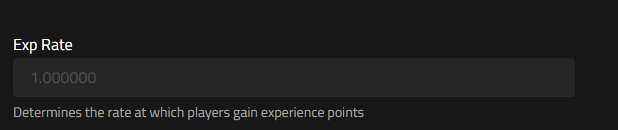
EXP Rate defaults to 1.000000. It’s a multiplier applied to how much experience players earn from activities such as defeating enemies and catching Pals.
Death Penalty
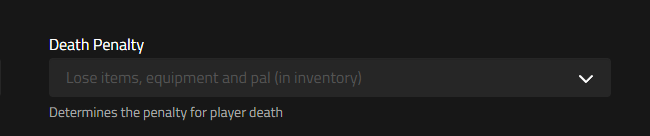
Death Penalty defaults to “Lose items, equipment and pal (in inventory)”. Setting it to None means a dying player drops nothing at all. Setting it to Item means a dying player drops all inventory items but keeps their equipped gear. Setting it to All means a dying player drops all items, equipment, and every Pal on their active team.
Player Settings
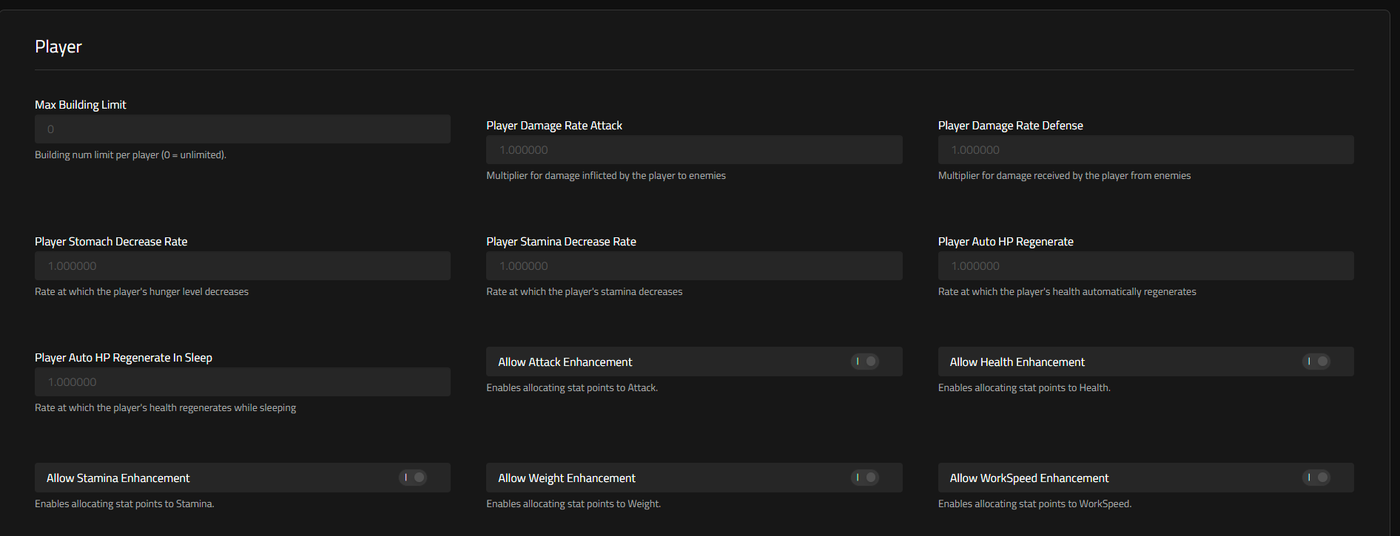
Player settings tune damage, hunger, stamina, and HP regeneration for every survivor on the server, and they sit under Settings > General alongside the other rate sections.
Max Building Limit defaults to 0, meaning unlimited. The building count cap applies per player rather than per guild or per base. Raising it above 0 restricts how many structures each individual player can place.
Player Damage Rate Attack defaults to 1.000000. This setting multiplies the damage players deal to enemies, so a value of 2.0 would double player damage output. Player Damage Rate Defense also defaults to 1.000000 and is a multiplier for damage received by the player from enemies.
Player Stomach Decrease Rate and Player Stamina Decrease Rate both default to 1.000000, controlling how quickly a player’s hunger and stamina deplete respectively.
Player Auto HP Regenerate defaults to 1.000000 and sets the rate at which a player’s health automatically regenerates. Player Auto HP Regenerate In Sleep also defaults to 1.000000. It’s separate from the standard HP regeneration rate and only affects health recovery while the player is sleeping.
Five settings round out the Player section, and all default to on. These are Allow Attack Enhancement, Allow Health Enhancement, Allow Stamina Enhancement, Allow Weight Enhancement, and Allow WorkSpeed Enhancement. Each one enables allocating stat points to that category when a player levels up.
Pal Settings
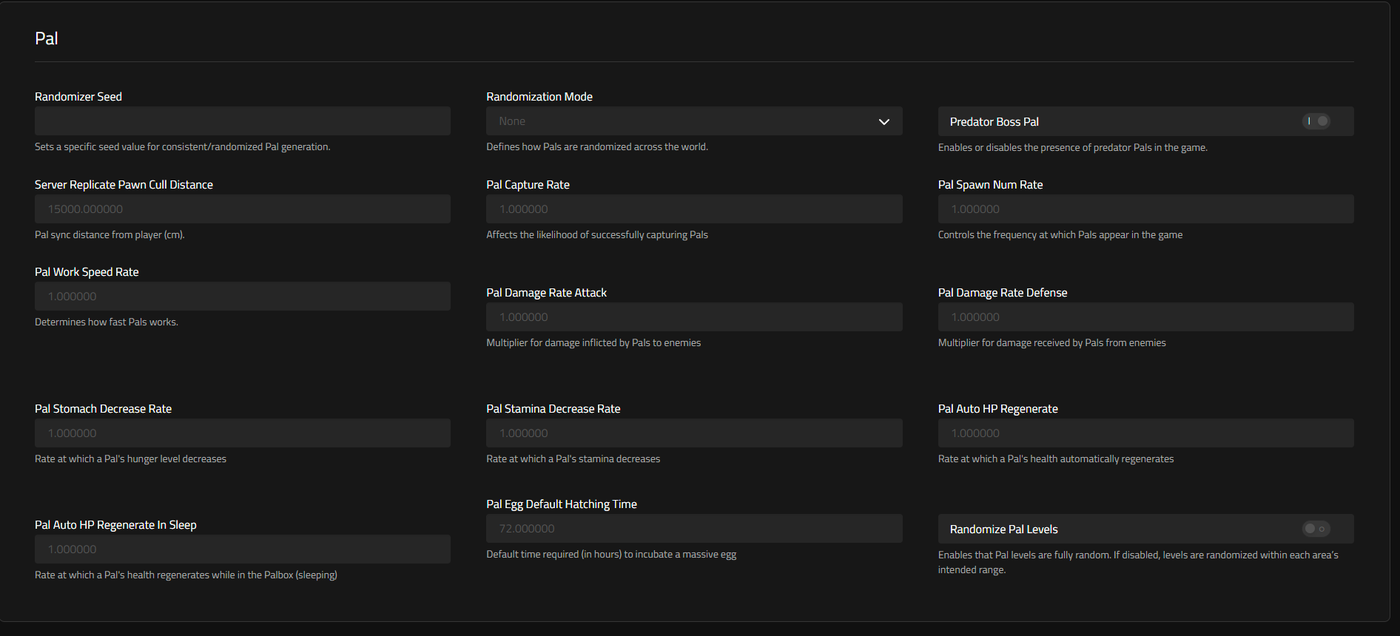
Pal settings tune capture rate, spawn frequency, damage, and hunger for every Pal on the server. They’re the largest of the creature-focused sections under Settings > General.
Randomizer Seed is empty by default. It’s the seed value used when the Pal spawn randomization mode is enabled, producing a specific, reproducible randomized layout. Randomization Mode defaults to None: None disables Pal spawn randomization, Region randomizes Pal spawns within each region, and All fully randomizes Pal spawns across the map.
Predator Boss Pal is on by default and controls whether predator Pals appear in the game. Predator Pals are larger, stronger versions of regular Pals with glowing red eyes and a red aura, and they cannot be captured. Defeating one grants 25 times the normal experience compared to defeating an equivalent regular Pal.
Server Replicate Pawn Cull Distance has a default of 15000.000000. It controls the Pal sync distance from players in centimeters, with a minimum of 5000 and a maximum of 15000.
Pal Capture Rate defaults to 1.000000 and is a multiplier on the base Pal catch rate. Pal Spawn Num Rate also defaults to 1.000000; it’s a multiplier on how many Pals spawn, and increasing it impacts server performance.
Pal Work Speed Rate defaults to 1.000000. Higher Work Speed makes Pals and players take less time to complete base tasks such as Handiwork, Mining, Lumbering, Planting, Gathering, Watering, Kindling, and Medicine production. For Gathering and Farming work specifically, higher Work Speed also increases the yield produced, not just the completion time.
Pal Damage Rate Attack and Pal Damage Rate Defense both default to 1.000000, multiplying damage Pals deal to enemies and damage Pals receive from enemies respectively.
Pal Stomach Decrease Rate and Pal Stamina Decrease Rate both default to 1.000000, controlling how quickly a Pal’s hunger and stamina deplete.
Pal Auto HP Regenerate defaults to 1.000000, a multiplier on a Pal’s natural health regeneration rate. Pal Auto HP Regenerate In Sleep also defaults to 1.000000, a multiplier on a Pal’s health regeneration rate while sleeping in the Palbox.
Pal Egg Default Hatching Time has a default of 72.000000 hours. It sets the base hatch time for eggs that have the maximum hatch duration.
Randomize Pal Levels is off by default. When enabled, wild Pal levels are fully random; when disabled, levels are randomized within each area’s intended range.
Guild Settings
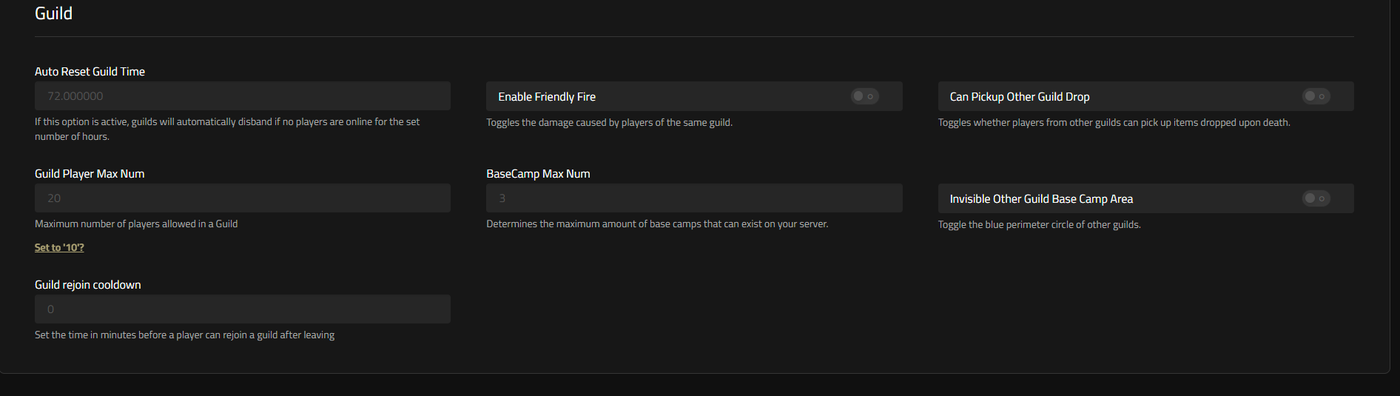
Guild settings control group size, friendly fire, and shared base camp limits, and you’ll find them under Settings > General.
Auto Reset Guild Time has a default of 72.000000 hours. If active, guilds automatically disband if no players are online for the set number of hours; the setting is ignored if the automatic reset feature is disabled.
Enable Friendly Fire is off by default, meaning players in the same guild cannot damage each other unless it’s turned on.
Can Pickup Other Guild Drop is off by default. Turn it on to let players pick up items dropped on death by players from guilds other than their own.
Guild Player Max Num has a default of 20. It caps the maximum number of players allowed in a single guild.
BaseCamp Max Num shows a default of 3 on this server, though the game’s own default is 128 total base camps. It caps the total number of base camps on the map, counted cumulatively across every guild’s bases.
Invisible Other Guild Base Camp Area is off by default and controls the blue perimeter circle around other guilds’ bases. When set so other guild base areas are not shown, players no longer see the boundary circle around bases belonging to other guilds.
Guild rejoin cooldown has a default of 0 minutes. It controls the cooldown before a player can rejoin a guild after leaving one.
PvP Settings
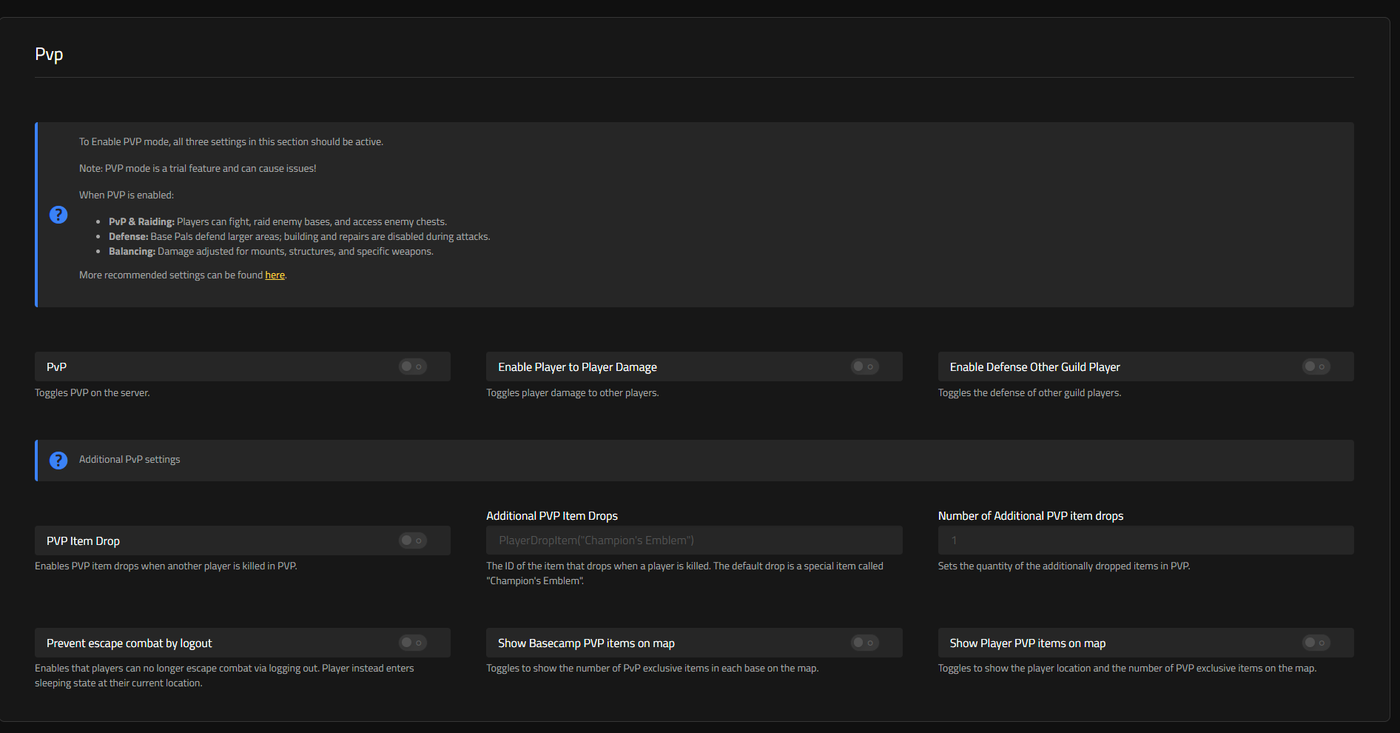
PvP settings enable player-versus-player combat and control item drops on death in PvP, and they live under Settings > General.
PvP is off by default. Turn it on to enable PvP for the server. Enabling PvP alone doesn’t activate player-versus-player combat, though. PvP, player-to-player damage, and guild player defense must all be turned on together for PvP to actually function. When PvP mode is active, damage dealt by players to summoned and base Pals is reduced. Damage received by airborne players and their ride Pals is increased at the same time. Base Pals will also engage hostile trespassing players over a wider area than normal, and melee damage dealt to structures built by other players is reduced.
Enable Player to Player Damage is off by default. It’s one of the three required settings above that all need to be turned on together before players can actually damage each other. Enable Defense Other Guild Player is the third of those three settings, also off by default.
PVP Item Drop is off by default. When enabled, a single Champion’s Emblem drops by default whenever one player kills another in PvP mode. The Champion’s Emblem is a material item described in-game as an emblem of glory earned through victory, and it cannot be purchased from merchants.
Additional PVP Item Drops is empty by default and holds the ID of an item that drops alongside the default Champion’s Emblem when a player is killed. Number of Additional PVP item drops has a default of 1, setting the quantity of that additional item.
Prevent escape combat by logout is off by default. Turn it on and a player who logs out lies down and falls asleep at their current location instead of disappearing. Logging out no longer lets them escape combat.
Show Basecamp PVP items on map and Show Player PVP items on map are both off by default. The first displays the number of Champion’s Emblems held at each base camp on the world map. The second shows each player’s location on the world map along with the number of Champion’s Emblems they’re carrying.
Build Settings

Build settings control how much damage player structures take and how fast they deteriorate. You’ll find both settings under Settings > General.
Build Object Damage Rate has a default of 1.000000, a multiplier for damage dealt to structures. Build Object Deterioration Damage Rate also defaults to 1.000000, controlling the rate of deterioration damage to structures over time.
Collection Settings

Collection settings control resource drop rates and how quickly gatherable objects respawn, and they sit under Settings > General.
Collection Drop Rate has a default of 1.000000, a multiplier for the rate at which gatherable items drop. Collection Object HP Rate also defaults to 1.000000, a multiplier for the health points of gatherable objects, meaning higher values make objects take more hits to break.
Collection Object Respawn Speed Rate defaults to 1.000000. It sets the rate at which gatherable objects respawn in the game world.
Platform Options and Crossplay
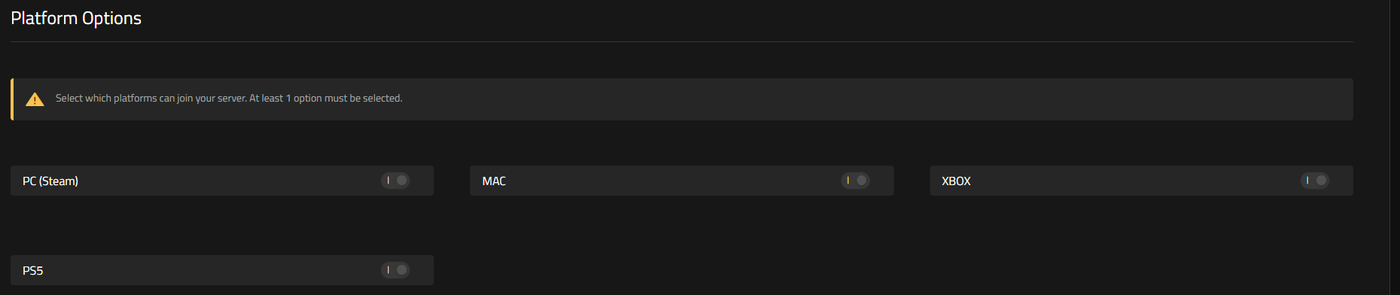
Platform Options control crossplay: choose which platforms can join your Palworld server. You’ll find this section under Settings > General. Nitrado Palworld servers support crossplay, letting players connect across Steam, Xbox, PlayStation, and Mac.
Four settings appear here, and at least one must stay selected: PC (Steam), MAC, XBOX, and PS5, all on by default. Each one corresponds to the CrossplayPlatforms server setting, which includes that platform among those allowed to connect by default. Turning one off blocks players on that platform from joining your server.
Configuration Profiles
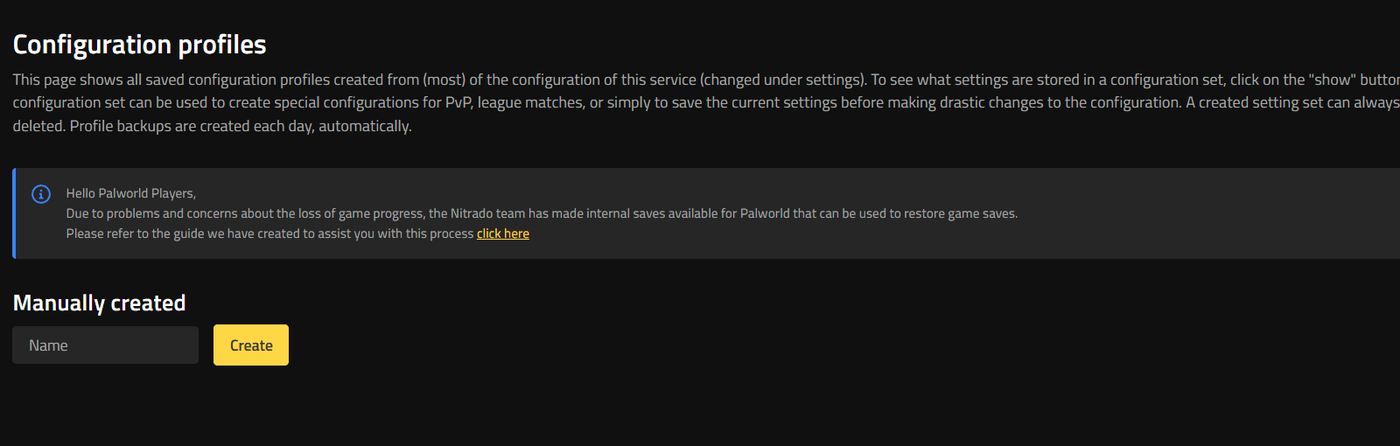
Configuration profiles save and restore full sets of server settings, and you’ll find them under Settings > Configuration profiles. A configuration set can be used to create special configurations for PvP, league matches, or to save the current settings before making drastic changes to the configuration.
To create one manually, enter a name in the Name field and click Create. Any saved profile can be deleted later.
Backups
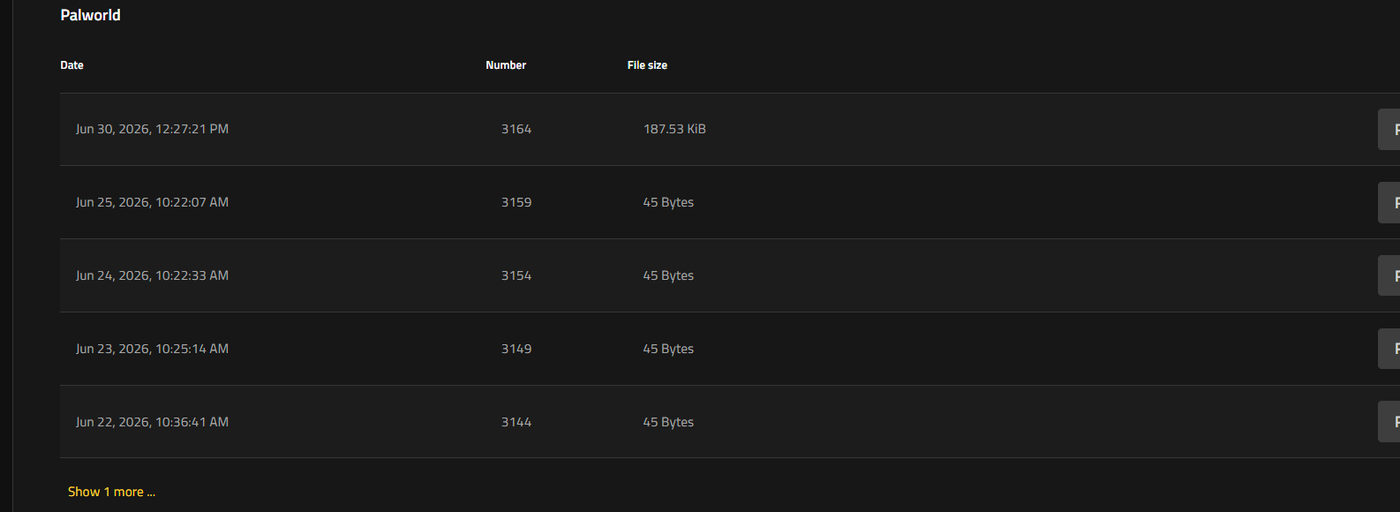
Server backups let you restore your Palworld server from a dated automatic backup. You’ll find this list under Tools > Restore Backup, showing each available backup by date and file size. A “Show 1 more” option reveals additional entries beyond the initial list.
Managing Files with the File Browser
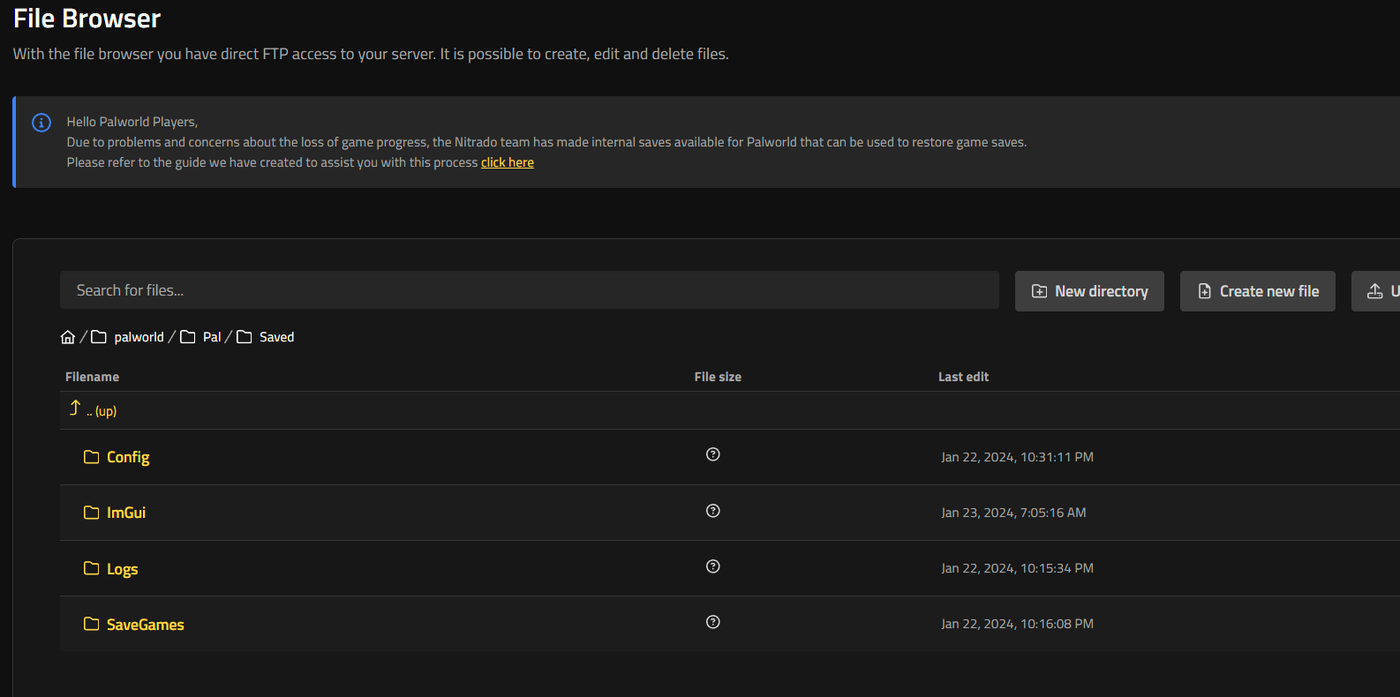
The File Browser gives direct FTP access to your server, letting you create, edit, and delete files without a separate FTP client. You’ll find it under Tools > File Browser.
Your Palworld save games, config, and logs live under the Pal/Saved folder path. From there, use New directory to create a folder and Create new file to add a blank file. The upload button sends files from your computer to the server. The breadcrumb path at the top of the screen shows exactly where you are in the folder structure, and the “.. (up)” button takes you back one level.
Tune Your Server, Your Way
That covers every settings section in the Web Interface’s General area for your Palworld server, from the day-to-day play rates through to guild limits, PvP rules, configuration profiles, and the backups and files that keep your world safe. Stop the server before changing any of these settings, and restart it once you’ve saved your changes so they apply cleanly. From here, head into Settings > General and start tuning your Palworld server to match how your group wants to play.
Finding Your Palworld Server Settings
General Settings
Gameplay Settings
- Day Time Speed Rate
- Night Time Speed Rate
- EXP Rate
- Death Penalty
Player Settings
Pal Settings
Guild Settings
PvP Settings
Build Settings
Collection Settings
Platform Options and Crossplay
Configuration Profiles
Backups
Managing Files with the File Browser
Tune Your Server, Your Way