指南
How to Install Minecraft Server Mods
Hosting a modded Minecraft server puts complete creative control directly in your hands. Instead of playing by the standard rules, you get to populate your world with custom creatures, complex machinery, and entirely new dimensions built exactly for your playstyle. In this Nitrado guide, we walk you through how to install Minecraft server mods from start to finish so you can launch the exact multiplayer experience you want.
Getting Started With Minecraft Mods
Before jumping into server files, you need to gather the right modifications for your setup. This begins with sourcing your files from trusted community hubs and making sure they are compatible with your target version.
Where To Find Minecraft Mods
Knowing where to look guarantees you download safe and reliable files. Websites like CurseForge and Modrinth are excellent starting points. On CurseForge, you can filter by categories like Magic or Technology to find exactly what you need to upgrade your world.

Downloading Mods For Minecraft
Modifications require a specific game version to function properly. Before downloading anything, verify the exact version of Minecraft you want to play.
- Navigate to the mod’s download page and click the Files or Versions tab to see all available releases.

- Locate the specific file that matches your target game version.

- Click the Download button next to the correct version.

- Save all your downloaded files into a dedicated folder on your computer so they are easy to find later.
How To Install Minecraft Server Mods
The installation process happens in two distinct phases. You configure the server itself first, and then you match those exact settings on your personal game client to ensure a smooth connection.
Installing Mods On Your Nitrado Server
Your Nitrado server needs the right foundation to read custom files. Verify your game type is set to Minecraft (Modpack) and the version is set to either Forge or Fabric matching your downloaded files. If it does not match, use the SWITCH GAME feature to uninstall the current type, then reinstall the exact Minecraft version you need.

- Start your server once to generate the necessary system folders, then stop it as soon as it comes online.
- Navigate to Tools > File Browser to open your server files. If you prefer an alternative method, you can also upload files by using your Nitrado server FTP.
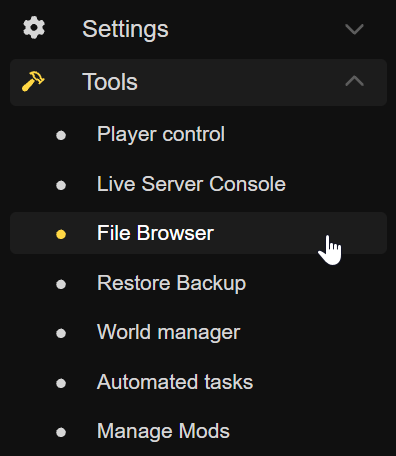
- Open the target location by navigating to minecraftotherpacks > mods.

- Click the Upload file button.

- Select the downloaded files from your computer and wait for the upload to finish.
- Start your server again to load your new Minecraft mods.
Installing Mods On Your Local Minecraft Game
You cannot connect to a customized world unless your personal game client matches the server exactly.
- Download the Forge or Fabric installer that matches your server version from their official websites. Alternatively, you can download a third party launcher like CurseForge to install them.
- Run the installer file. If your computer does not open it automatically, right-click the file, hover over Open with, and select Java Platform SE binary.
- Select the Install client option and click OK to apply Forge/Fabric to your launcher.
- Open your Minecraft launcher and select your new loader profile from the version dropdown menu.
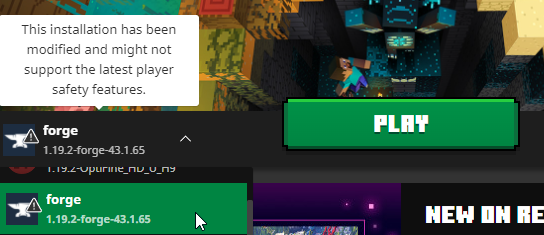
- Click Play and let the game reach the main menu to generate your local data folders.
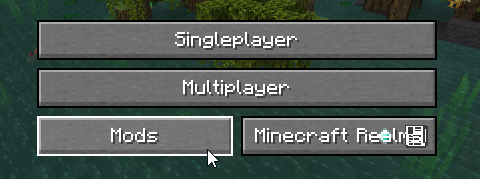
- Click the new Mods button on the main menu, then select Open mods folder.
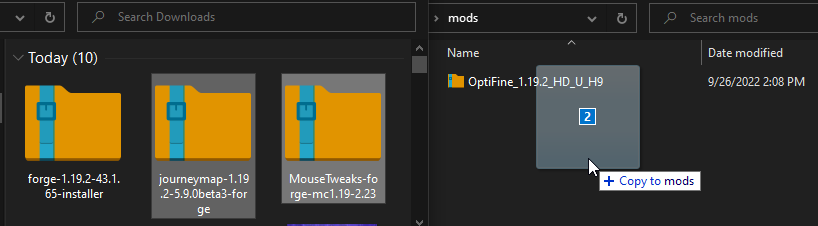
- Copy the exact same files you uploaded to your server into this local folder.
- Close the folder, restart the game with your loader profile, and connect to your world.
Pro Tip: Always verify your local loader version matches your Nitrado server exactly to prevent connection errors when your friends try to join.
Trying Minecraft Modpacks
Combining multiple individual mods creates a modpack, turning your standard survival run into something completely different. You can introduce intense hardcore RPG mechanics, build massive automated factories, or even populate your world with catchable monsters. The gameplay possibilities stretch as far as your imagination allows. Check out our Best Minecraft Mods in 2026 (Java Edition) to see what you can build right now.
Shape Your Modded Minecraft Legacy
Customizing your world takes a little preparation, but the payoff is a unique multiplayer experience built exactly the way you want it. Grab your friends, gear up with new items, and conquer the new bosses waiting for you.
Troubleshooting Common Minecraft Mod Issues
Even with the correct setup process, Minecraft modded servers can occasionally run into issues during startup or connection attempts. Most problems are caused by version mismatches, missing files, or incorrect mod installations. The troubleshooting steps below cover the most common errors players encounter and how to quickly resolve them so your server can get back online.
Incorrect Version
A mismatch between the server and your client blocks connection attempts. Verify the exact version number is identical on both ends.
Mod Version Mismatch Error
This happens when the files on the server differ from the files on your computer. Delete all custom files and config documents from your local game folder, download the files directly from your server, and paste them into your local folder to force an exact match.
Duplicate Mods
Uploading the same file twice causes the system to crash. Check your folders and delete any duplicates.
Missing Mod Dependencies
Many large modifications require smaller library files to function. If the server refuses to start, check the Live Server Console for errors indicating missing dependencies. Install the required libraries to fix the startup sequence.
Server Crashing During Startup
Crashes usually stem from the issues listed above. If you clear out duplicates and fix dependencies but the server still fails, reinstall the launcher entirely and upload your files again.
Server Is Stuck Loading
Adding or removing items from an existing world can cause the startup process to hang while it waits for user confirmation. Go to your web interface, open the Live Server Console, and type the command fml confirm to force the server to proceed.
Getting Started With Minecraft Mods
- Where To Find Minecraft Mods
- Downloading Mods For Minecraft
How To Install Minecraft Server Mods
- Installing Mods On Your Nitrado Server
- Installing Mods On Your Local Minecraft Game
Trying Minecraft Modpacks
Shape Your Modded Minecraft Legacy
Troubleshooting Common Minecraft Mod Issues
- Incorrect Version
- Mod Version Mismatch Error
- Duplicate Mods
- Missing Mod Dependencies
- Server Crashing During Startup
- Server Is Stuck Loading