指南
How to Use Valheim Console Commands on Your Server
Your Valheim server is up, your Vikings are geared for the next biome, and someone in the group just asked how to ban a griefer who’s messing with your base. Console commands solve such issues instantly. Type a short line into the in-game console or the chat window, and you can manage players, force a save, or adjust a world modifier in seconds. In this Nitrado guide, we’ll show you the Valheim commands and console commands that actually work on a dedicated Valheim server, starting with admin tools, and moving through the commands every player can use.
How To Use Valheim Console Commands
The process for opening the console is different on PC than on console. On PC, you’ll need to enable the console through Valheim’s launch options before opening it in-game:
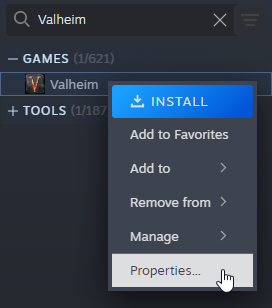
- Open Steam, go to your game library, right-click Valheim, and select Properties.
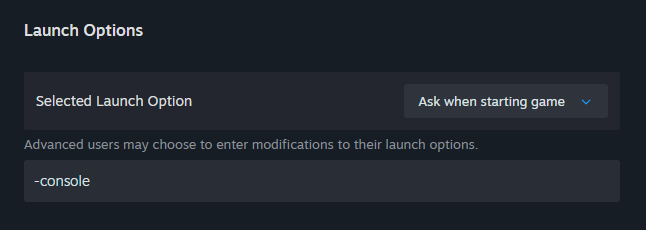
- In the General tab, find the Launch Options field and type -console into it.
- Close the window and start Valheim. In-game, press F5 to open the console.
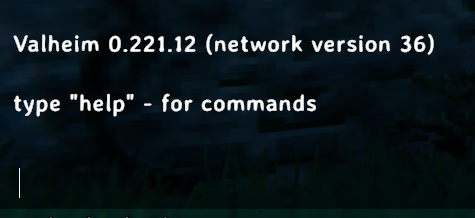
- Type a command into the console and press Enter to run it.
If you’re playing on PS5 or Xbox, you can open the console by holding all four shoulder buttons and then pressing the corresponding menu button.
- On PS5, hold L1 + R1 + L2 + R2, then press Options.
- On Xbox, hold LB + RB + LT + RT, then press the Menu/Start button.
List Of Valheim Console Commands
Nitrado dedicated servers support two tiers of Valheim commands: admin commands that only work for players on the server’s admin list, and player commands that anyone connected can run from the chat window.
Admin Commands For Your Server
Available when you are an admin on a Valheim game server, these commands let you manage the players across your server and adjust world settings without a restart.
| Admin Command | Information |
|---|---|
| /ban [name/ip/userID] | Bans that user from your server. |
| /unban [name/ip/userID] | Unbans that specified player on the server. |
| /kick [name/ip/userID] | Kicks that player out of your server. |
| /banned | Displays a list of all banned players on your server. |
| /save | Forces the server to save progress at that moment. |
| /setworldmodifier [name] [value] | Sets a world modifier slider value, such as difficulty or resource rate. |
| /setworldpreset [name] | Resets all world modifiers to a named preset. |
| /resetworldkeys | Resets all world modifiers to default. Does not reset gameplay progression keys. |
Getting Admin On A Valheim Server
You need to have admin rights on your Valheim server to use the commands listed above. There are two ways to make a player an admin: by using Player Control, or by editing the adminlist.txt file in your server’s Config Files.
Method 1: Using Player Control
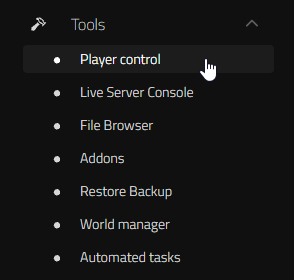
- Open your Nitrado web interface and go to Tools > Player Control.
- Click Add Player on the right.
- Enter the player’s SteamID or username.
- Select Adminlist from the dropdown menu and click Add.
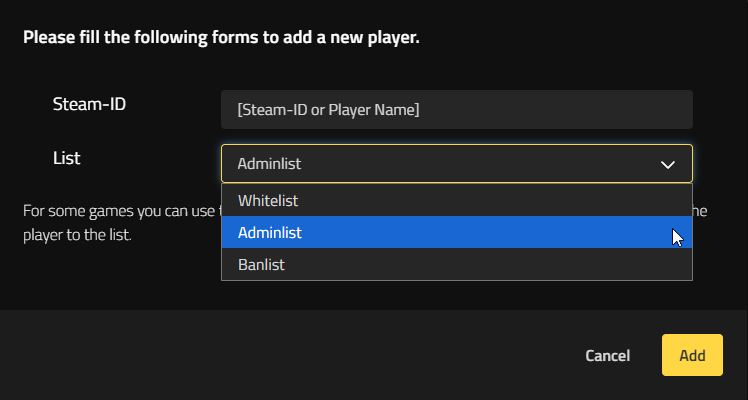
- If you don’t see the newly added player in the list, make sure the Online check is deselected. This displays all players, rather than only those currently connected to the server.
You can also have your players connect to your server, and then edit their permissions directly.
Method 2: Editing adminlist.txt
- Open your Nitrado web interface and go to Settings > Config Files.
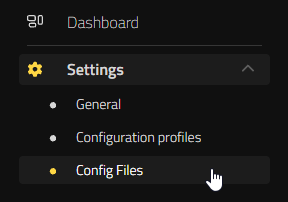
- Open the adminlist.txt file. This should be the first file in the list by default.
- Add each player’s SteamID or username on its own line.
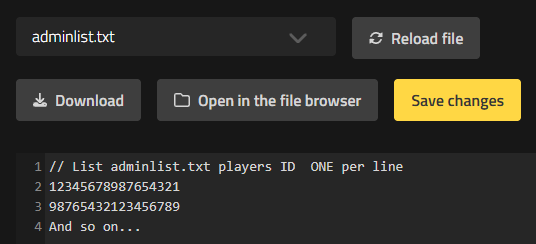
- Select Save Changes, then restart your server to apply the changes.
Note: For Steam players, you can find their SteamID by opening Steam, clicking their name to open their profile page, and copying the 17-digit number from the profile link.
Player Commands For Your Server
These Valheim console commands are available to all players on your Valheim server and cover things like toggling the map, pinging the server to check your connection, and more.
| Player Command | Information |
|---|---|
| /help [page] | Used to see the available commands on the server. There are a total of 5 help pages. |
| /s [message] | Shouts a message in chat. |
| /say [message] | Says a message in chat. |
| /w [player] [message] | Whispers a message directly to a player. |
| /ping | Pings the server to measure latency. |
| /nomap | Toggles the map on and off. |
| /noportals | Toggles portals on the server. |
| /fov [number] | Changes your player’s field of view. The default is 120. |
| /lodbias [number] | Sets the draw distance for the server. The number can be set from 1 to 7. |
| /maxfps [FPS] | sets fps limit |
| /info | Displays current system information on the server. |
| /resetknownitems | reset character known items & recipes |
| /resetsharedmap | Removes shared map data from cartography table. |
| /resetspawn | Resets the spawn location. |
| /respawn | Kills and respawns the player who runs this command. |
| /tutorialreset | Resets all viewed tutorial messages. |
| /tutorialtoggle | Sets whether tutorials should appear. |
| /bind [keycode] [command] | Binds a custom command to a Unity keycode. |
| /unbind [keycode] | Clears all custom command binds for a specific Unity keycode. |
| /printbinds | Displays all current custom command binds. |
| /printseeds | Prints seeds and positions of nearby dungeons in-game. |
| /resetbinds | Removes all custom command binds. |
Looking For Every Valheim Command?
This guide covers the basic Valheim console commands that actually work on your dedicated Nitrado server: admin tools and player commands. For an extensive list, the Valheim Fandom wiki’s Developer Console page documents every command, cheat, and key in the game.
Frequently Asked Questions
Are Valheim console commands the same on PC, PS5 and Xbox or crossplay servers?
Player commands and emotes work the same way everywhere: type them into the chat window and press Enter, whether you’re on PC, PS5, Xbox, or Game Pass. Getting to that chat window differs by platform.
Do you need to be an admin to use Valheim console commands?
No. Commands like Ping, Say, and every emote are open to any player connected to your server. Admin commands, including Ban, Kick, Save, and the world modifier commands, only work for players who have been given admin rights by server owners.
Why don’t Fly, God Mode, or Item Spawn commands work on my Nitrado server?
Those are cheat commands, and Valheim gates them behind the devcommands command, which only turns on in singleplayer or a manually hosted game. Dedicated servers, Nitrado’s included, don’t allow devcommands, so this guide focuses on the admin and player commands that do work there.
How do you check if you’re an admin on your Valheim server?
Try an admin-only command like Save. If the server acts on it instead of ignoring it, you’re an admin. Otherwise, ask whoever manages the server to confirm you are listed in the adminlist.txt file.
Command Your Nine Realms
A few console commands can make running a Valheim server much easier. With the admin and player commands you can handle bans, force a save before a big building session, adjust world modifiers, and let your group celebrate every boss fight without having to leave your dedicated Valheim server.
How To Use Valheim Console Commands
List Of Valheim Console Commands
- Admin Commands For Your Server
- Getting Admin On A Valheim Server
- Player Commands For Your Server
- Looking For Every Valheim Command?
Frequently Asked Questions
- Are Valheim console commands the same on PC, PS5 and Xbox or crossplay servers?
- Do you need to be an admin to use Valheim console commands?
- Why don’t Fly, God Mode, or Item Spawn commands work on my Nitrado server?
- How do you check if you’re an admin on your Valheim server?
Command Your Nine Realms