Guides

How to Host a Palworld Dedicated Server
Creating your own dedicated server for Palworld is a great way to host a public community or private group. You have full control over the gameplay settings and with increased performance. However, the process to manually host your own server can be complicated. In this Nitrado guide, we will show you how to create your own Palworld dedicated server and explore port forwarding, and customization.
Our expert went through the process of self-hosting a server and had this to say:
“I’ve installed the necessary software and booted up the server, which was the easy part. The next step is port forwarding, which enables my friends and anyone else to connect. This process was the most time consuming, especially for a community server. After about 10 minutes of setting it up, getting others to test it was the other part. My location wasn’t the best for all of my friends, as they’re in different countries. Despite latency issues, we all managed to play Palworld on a self-hosted dedicated server.
My group wanted mods and custom gameplay settings, which was relatively easy to do. All the files are quickly accessible and simple to navigate through, if you know what you’re looking for. However, I can see this entire process being more complicated for new server owners. My recommendation is to rent a server from Nitrado, as they take care of all the backend work and make it easier to customize the gameplay.” – Nathan, Palworld Server Expert
Rent Your Own Palworld Server!
With that said, begin following the sections below to host your own Palworld Dedicated Server.
Getting Started
You need to install the Palworld Dedicated Server from your Steam Library to boot up and generate the server. This is roughly 5-6 GB of memory, so it shouldn’t take too long to download.
- Launch Steam and search for “Palworld Dedicated Server” in your Library.
- Begin to download this on your computer. Wait for everything to finish up.
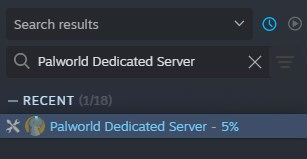
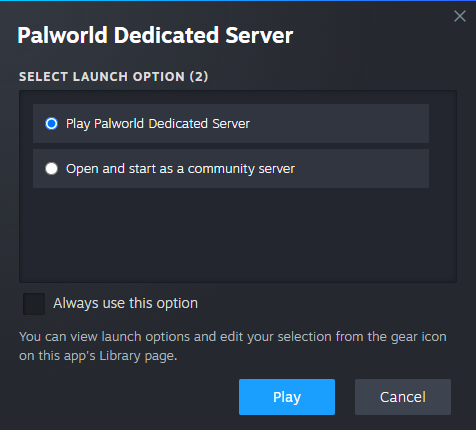
- When it’s done, launch the software. Pick the type of server you want to start:
- Dedicated Server (Private / Unlisted)
- Community Server (Public / Listed)
Click here to learn the difference between these two server types.
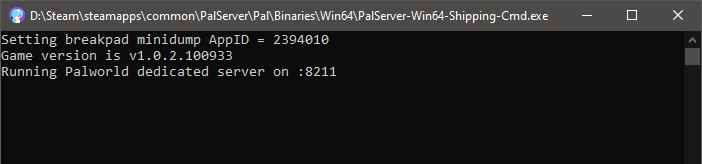
- This will open a Command Prompt window, booting up the server.
- If successful, you should see “Running Palworld dedicated server on :8211”.
- Test to see if this worked by joining the server using
127.0.0.1:8211in-game.
Port Forwarding
If you want other players from around the world to join your Palworld Dedicated Server, then you must use your public IP address and port forward it. This process can be challenging, especially for newcomers wanting to host for the first time. Due to the complexity of port forwarding, here’s a quick breakdown of what you need to do:
- Open Command Prompt on your server host PC, type
ipconfigand copy your IPv4 Address and Default Gateway IP Address. - Open a web browser, enter your Default Gateway IP Address into the address bar, and log into your router.
- Locate the
Port ForwardingorNATrules section in your router’s admin panel. - Create a rule pointing port
8211(UDP) directly to your host PC’s IPv4 Address. - (Optional): If needed, point these additional ports to your IPv4 Address:
- Ports
27015–27016(TCP/UDP): For community server list visibility. - Port
25575(TCP): For remote admin (RCON) access.
- Ports
- Open your host PC’s firewall settings and create an
Inbound Ruleallowing traffic on port8211(UDP). - Search “what is my IP” in a web browser to get your public IP address.
- Have outside friends connect using
Public_IP:8211while local players connect using your internal IPv4 Address.
We strongly recommend researching online for further information and details.
Server Files / Settings
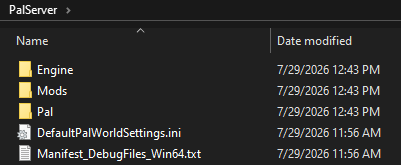
If you want to customize your gameplay experience by editing game options, then you need to locate the server files. This is also where you can access save files and even install mods, if you want. Follow these instructions to find your server files:
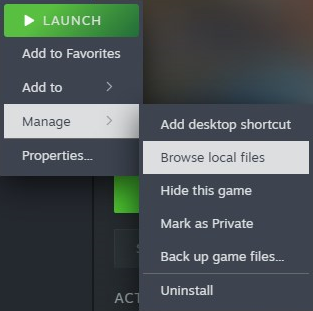
- Right-click Palworld Dedicated Server from your Steam Library.
- Hover over
Manage, then selectBrowse Local Files.
-
Navigate to the directory of your choice:
- Save Files:
…\Pal\Saved\SaveGames\0 - Server Settings:
…\Pal\Saved\Config\WindowsServer - Script & Logic Mods:
…\Pal\Content\Paks - Workshop & Framework Mods:
…\Mods
- Save Files:
- From here, make your adjustments or upload mod files.
Keep in mind, the GameUserSettings.ini file is your server settings.
Nitrado Palworld Server Hosting
One major issue when self-hosting your own Palworld Dedicated Server is that your computer must always be running with the software launched. If you turn off your computer at any point, the server will be shut down. Comparing that with Nitrado, it can remain online 24/7 without interruption. There are more benefits too when hosting with us:
| Feature | Nitrado Dedicated Server | Self-Hosting on Your PC |
|---|---|---|
| Server Availability | 24/7 Uptime: Runs continuously so friends can play anytime without you. | Requires PC Running: Your computer and server software must stay online for players to join. |
| PC Performance | Zero PC Strain: Uses no RAM or CPU on your machine, keeping your gaming smooth. | Heavy FPS Drops: Eats up 12GB–16GB+ RAM and heavy CPU power on your own rig. |
| Setup & Control | One-Click Panel: Easy Web Interface for changing settings, installing mods, and more. | Complex Setup: Requires router port forwarding, text file edits, and manual patching. |
| Network Security | DDoS Protection: Keeps your home IP address hidden and secure. | Exposes Home Network: Forces you to share your private home IP address with external players. |
| Save Protection | Automatic Backups: Instant one-click restoration if save data corrupts. | Corruption Risk: PC crashes or power loss can permanently wipe your save file unless backed up manually. |
| Connection Quality | Enterprise Speeds: Fast hardware ensures low ping and lag-free play for everyone. | Home Network Limits: Restricted by home internet upload speeds, causing lag spikes for friends. |
| Power & Hardware Wear | Fixed Low Cost: Zero impact on home electricity bills or component lifespans. | Higher Electric Bills: Running a PC 24/7 spikes power bills and wears down hardware. |
Easier setup, faster customization, increased performance, better security, available today. Consider renting from us to host your Palworld server to play with friends or build a community!
Helpful Resources
Getting Started
Port Forwarding
Server Files / Settings
Nitrado Palworld Server Hosting
Helpful Resources