Guides
Valheim Server Settings Explained
A Valheim server comes with a long list of options to configure before you can start your journey through the tenth realm. Server name, password, difficulty, raid frequency, and other settings can be easy to misinterpret, since their labels don’t always explain what they control. In this Nitrado guide, we’ll cover every setting, explain what each option controls, and help you choose values that suit the way your group wants to play.
How to Change Your Valheim Server Settings
Every setting in this guide lives on one page. Log into your Nitrado web interface and navigate to Settings > General.
This single page holds both your Base Settings and your World Modifiers, so there’s no need to hunt through separate tabs to build the world your group wants. The sections below walk through what each field controls, along with a few details worth knowing before you touch anything you’re not sure about, especially the World Modifiers, which are tied to how and when you create your world.
Base Settings Explained
Base Settings cover the fundamentals: what your server is called, who can get into it, and which platforms can join. Five fields sit under this heading in the Web Interface.
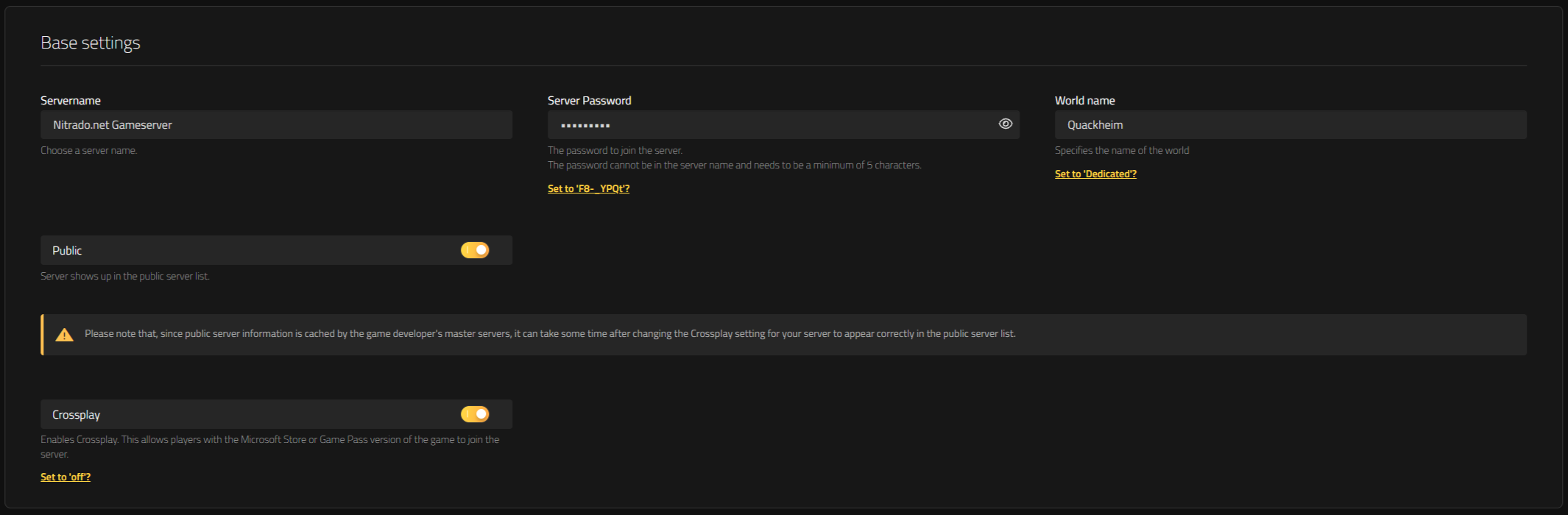
- Servername: The name your server shows in the Valheim server browser and to anyone connecting directly. Pick something your group will recognize instantly in a crowded list.
- Server Password: The password players enter to join the server. Valheim requires at least 5 characters, and only certain special characters are supported. If the password contains an unsupported character, the field will indicate whether the password is valid after you save your changes.
- World Name: The save file your server loads. Enter the name of a world your group has already played, and the server loads that exact save. Enter a name that doesn’t match an existing file, and the server generates a brand-new world under that name the next time it starts, leaving your old save untouched. Double-check this field before saving if you want to keep playing on the same world.
- Public (Toggle): Controls whether your server shows up in Valheim’s public server list. It only removes the listing from that public browser. Friends with your server details can still connect directly either way, so treat Public as a discoverability setting.
- Crossplay (Toggle): Lets console players join the same server as PC players. It’s a connectivity setting. Turn it on if anyone in your group plays on console, and leave it off for a PC-only server.
World Modifiers Explained
World Modifiers adjust how tough, how generous, and how restrictive your Valheim world feels, and they sit on the same Settings > General page as your Base Settings.
World Preset: A shortcut that adjusts several of the modifiers below at once to match a play style, instead of setting each one by hand. Pick a preset first, then fine-tune individual modifiers if you want something in between.
| Preset | Description |
|---|---|
| Normal | The default settings and intended Valheim experience. |
| Casual | Easier combat, no death penalty, increased resources, and unrestricted portals. |
| Easy | Easier combat and less frequent raids. |
| Hard | Stronger enemies, a harsher death penalty, and restricted portals. |
| Hardcore | Permadeath mode. |
| Immersive | Tougher combat and restricted portals, while resources and the death penalty remain at normal levels. |
| Hammer | Easy combat, abundant resources, and unrestricted portals. A great choice for players who want to focus on building. |
Combat Difficulty: Adjusts how tough enemy encounters are. Very Easy suits a group still learning the combat system; Very Hard is for players who already know Valheim’s bosses and want a real fight. Each option scales four things against the game’s own Normal baseline (100% across the board):
| Preset | Player Damage | Enemy Damage | Enemy Speed & Size | Enemy Level-Up Rate |
|---|---|---|---|---|
| Very Easy | 125% | 50% | 90% | 100% |
| Easy | 110% | 75% | 90% | 100% |
| Hard | 85% | 150% | 110% | 120% |
| Very Hard | 70% | 200% | 120% | 140% |
Hard and Very Hard also raise the odds of higher-level enemies spawning, so expect tougher fights even against the same boss.
Death Penalty: Sets how much you lose when your character dies. Casual keeps deaths low-stakes; Hardcore risks your gear and skill progress, so save that setting for a group that’s genuinely up for the consequences.
| Preset | Equipment | Inventory | Skill Loss |
|---|---|---|---|
| Casual | Kept | Dropped | 1% |
| Very Easy | Dropped | Dropped | 1% |
| Easy | Dropped | Dropped | 2.5% |
| Hard | Dropped | Destroyed | 7.5% |
| Hardcore | Destroyed | Destroyed | 100% |
Resource Gathering Rate: Controls how much you collect from the environment per swing or harvest.
| Option | Multiplier |
|---|---|
| Much Less | 0.5x |
| Less | 0.75x |
| Use Preset Value | 1x |
| More | 1.5x |
| Much More | 2x |
| Most | 3x |
The multiplier applies directly to whatever you’d normally gather, and Valheim rounds the result up whenever it lands on a decimal. Say a harvest would normally give you 5 items: Much Less brings that down to 3 (5 x 0.5 = 2.5, rounded up to 3), Less to 4 (5 x 0.75 = 3.75, rounded up to 4), Use Preset Value leaves it at 5, More raises it to 8 (5 x 1.5 = 7.5, rounded up to 8), Much More to 10, and Most to 15. It doesn’t apply to fish, trophies, or boss drops. A smaller group short on playtime often leans toward More or Much More just to keep building progress moving.
Raid Frequency: Controls how often enemies attack your base. None is popular with builders who don’t want their base torn up while they’re offline; More and Much More suit a group that wants base defense to matter. None doesn’t switch off every attack, though: night-time monster spawns still happen, it just disables the scripted raid events.
| Preset | Raid Interval | Raid Chance |
|---|---|---|
| None | N/A | N/A (night spawns still occur) |
| Much Less | ~92 minutes | 10% |
| Less | ~69 minutes | 13.33% |
| More | ~27.6 minutes | 33.33% |
| Much More | ~13.8 minutes | 66.67% |
Portal Restrictions: Adjusts which items can travel through portals.
| Option | Description |
|---|---|
| Use Default Value | Non-portalable items apply as standard. Active by default when World Preset is set to Normal. |
| Casual | Portal items: allows everything to be portalled at all time, not including tamed animals. |
| Hard | No boss portals: portals aren’t available when a boss is active. |
| Very Hard | No portals: no portals are allowed at all in the world. |
Toggle Options
- No Build Cost (Toggle): When enabled, building structures doesn’t consume resources. Useful for a group focused on creative building rather than survival grind.
- Player Events (Toggle): When enabled, raid and event triggers follow each player’s individual progress instead of the server’s shared progress, so events reflect what you personally have accomplished rather than what the group as a whole has done.
- Passive Mobs (Toggle): When enabled, all mobs stay non-aggressive unless provoked, so nothing attacks your group on sight.
- No Map (Toggle): When enabled, the in-game map is disabled for every player on the server, forcing your group to navigate and mark locations manually.
If you want even more control over your Valheim server check out our Valheim console commands guide.
Shape the Tenth Realm to Your Will
Now that you know what every setting actually does, configuring your Valheim server comes down to picking values that fit your group. Whether that means a punishing Very Hard combat setting for a veteran crew or a relaxed Casual preset for newcomers finding their footing, the settings are there to shape your world your way.
How to Change Your Valheim Server Settings
- Base Settings Explained
- World Modifiers Explained
- Toggle Options
Shape the Tenth Realm to Your Will