Guides

How To Fix ‘Failed To Connect’ in Valheim
Valheim ‘Failed to Connect’ Error
Your friends are already exploring Valheim, and the game keeps throwing ‘failed to connect’ at you instead of letting you in. The error has more than one cause, and pinning down which one is yours takes some trial and error.
In this Nitrado guide, we break down how to fix it, from checking your server’s status to turning on Crossplay for console friends, so you can get back to your world. The first six checks cover PC connections; if you’re joining from console, skip ahead to the crossplay causes below.
Ways to Fix Valheim’s ‘Failed to Connect’ Error
Confirm Server Status
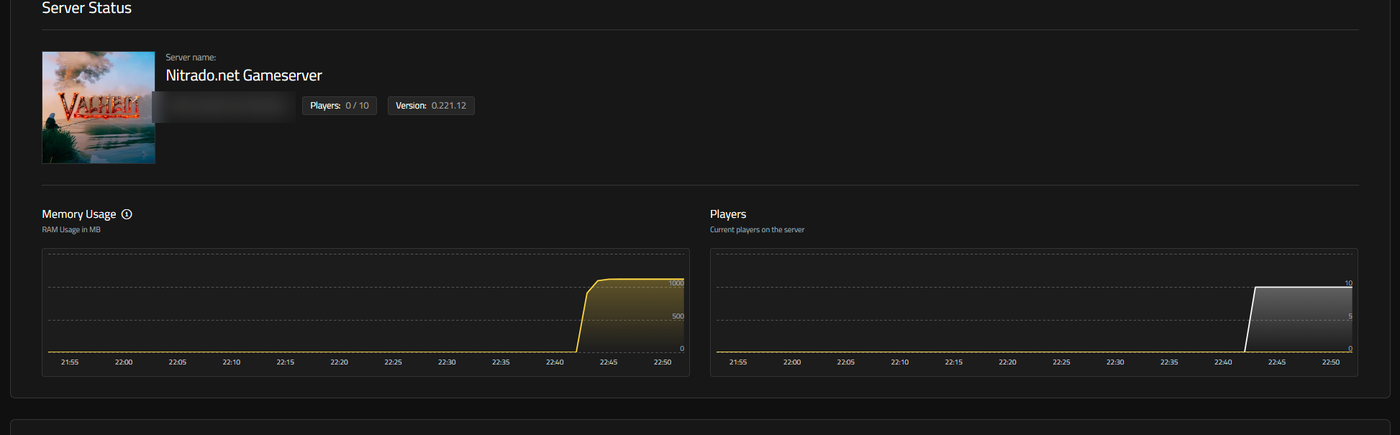
When every player hits the same error, check your server before anything else. Open your Nitrado Web Interface and check the Server Status line on your Dashboard, next to the player count. Start the server if it’s stopped, and wait out a restart before trying to join again.
Verify Game Files
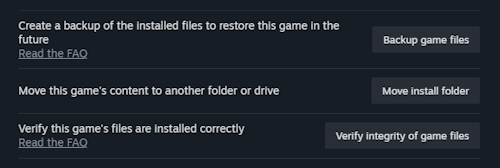
A missing or damaged game file can also trigger the error. Verify Valheim’s files through Steam: right-click the game in your library, open Properties, then select Verify integrity of game files. Steam repairs anything it finds on its own.
Update Network Drivers
An outdated network driver can also block the connection. Open Device Manager on Windows, expand Network Adapters, and update the driver listed for your network card. This fixes the error for anyone who hasn’t updated their network drivers in a while.
Restart Router
Your router manages your entire internet connection, so restarting it can clear the error too. Unplug the router, wait about 30 seconds, then reconnect it and try joining the Valheim server again.
Allow Firewall Access
A firewall, whether Windows’ own or a third-party antivirus, can also block Valheim’s connection. Add the game to your firewall’s allowed list; the exact steps depend on your firewall software, so check its documentation for the process.
Flush DNS
Flushing DNS clears your computer’s cache of network addresses, the same way restarting the router clears its own. Open Command Prompt as an administrator and run ipconfig /flushdns. This won’t affect anything else on your device.
Fixing Console and Crossplay Connection Issues
New consoles change what ‘failed to connect’ usually means. Here’s what stops console, and Microsoft Store players from joining, and how to fix each one.
Turn On Crossplay for Console and Microsoft Store Players
A Valheim dedicated server runs on Steam’s own backend by default, and Steam-only servers stay invisible to Microsoft Store, Xbox, and, at the 1.0 launch on September 9, 2026, PlayStation 5 and Switch 2 players. Turn on Crossplay under Settings > General in your Web Interface, save the change, then restart the server so console and Microsoft Store players can see and join it.
The public server list can take a little time to catch up after you change the Crossplay setting, since Valheim’s master servers cache that information. Joining by the join code or the server’s IP address works immediately, so share one of those while the list updates.

Refresh the Join Code After a Restart
The join code changes every time the server restarts, so a code your friend used yesterday won’t work today. Open the pause menu on your Valheim server, copy the current code, and re-share it.
Match Your Game Version After an Update
Valheim requires the same version on client and server to connect, and a major update, like the 1.0 launch on September 9, 2026, changes the version for everyone at once. Compare your client’s version against the Version badge on your Web Interface Dashboard. A mismatch shows up as the Incompatible Version error in Valheim: wait for the server to finish updating, then try again.
Reconnected and Ready to Play
With the server running, your drivers current, and Crossplay switched on for console friends, you’re clear to try again. Share your current join code and get everyone back into the world together.
Valheim ‘Failed to Connect’ FAQ
How Do I Fix ‘Failed to Connect’ in Valheim?
Work through the checks in order: confirm the server is online, verify your game files on Steam, update your network drivers, restart your router, allow firewall access, and flush your DNS. Console and crossplay players should also confirm Crossplay is on and their join code is current.
What Causes ‘Failed to Connect’ in Valheim?
Missing game files, a stale network cache, and connectivity problems cause most cases on PC. On console or across platforms, a disabled Crossplay setting, an expired join code, or a version mismatch after an update produces the same error.
Why Can’t Some Players Join My Valheim Server?
The server might be offline or restarting, password protected, whitelisted, or missing a mod that the connecting player doesn’t have. Check each possibility in turn. If the problem doesn’t clear up, open a support ticket with our Support Team.
Valheim ‘Failed to Connect’ Error
Ways to Fix Valheim’s ‘Failed to Connect’ Error
- Confirm Server Status
- Verify Game Files
- Update Network Drivers
- Restart Router
- Allow Firewall Access
- Flush DNS
Fixing Console and Crossplay Connection Issues
- Turn On Crossplay for Console and Microsoft Store Players
- Refresh the Join Code After a Restart
- Match Your Game Version After an Update
Reconnected and Ready to Play
Valheim ‘Failed to Connect’ FAQ
- How Do I Fix ‘Failed to Connect’ in Valheim?
- What Causes ‘Failed to Connect’ in Valheim?
- Why Can’t Some Players Join My Valheim Server?