Guides
How To Upload an Existing World to Your Valheim Server
Already built an impressive base or found a world seed you don’t want to leave behind? You don’t have to start your Valheim adventure all over again just because you’re moving to a server. Upload your existing world to your Valheim server and keep playing with your friends, with your progress and world intact. In this Nitrado guide, we’ll show you how to find your local save files, move your existing Valheim world to your server, and make sure your world loads correctly.
Finding Your Local World Files
After the 1.0 Deep North update and full release of Valheim, the save structure has changed a little. We’ll guide you through the process of finding your world files.
The World Folder
A Valheim world save now lives inside its own folder, named after the world itself. For example, if your world is called Quackheim, everything you need sits inside a folder named Quackheim. That folder holds every file your world needs, including files ending in .chunk, .chunks, .db2, .fwl2, and .ok.
Move Your World to Local
If your world lives in Steam Cloud rather than on your PC, move it to local first. Otherwise your world folder will not contain the files needed to upload your world to the server.
- Open Valheim and select Start Game.
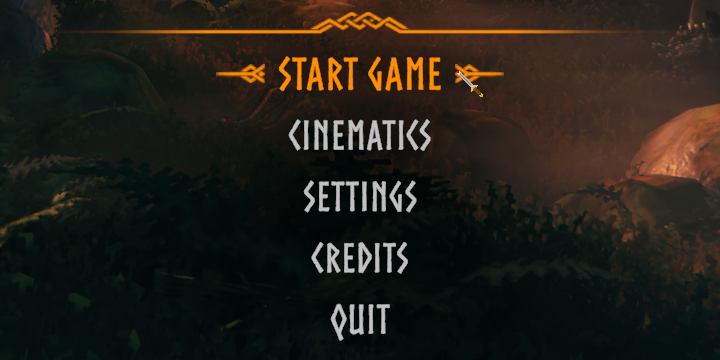
- On the bottom left, select Manage Saves.

- Open the Worlds tab.
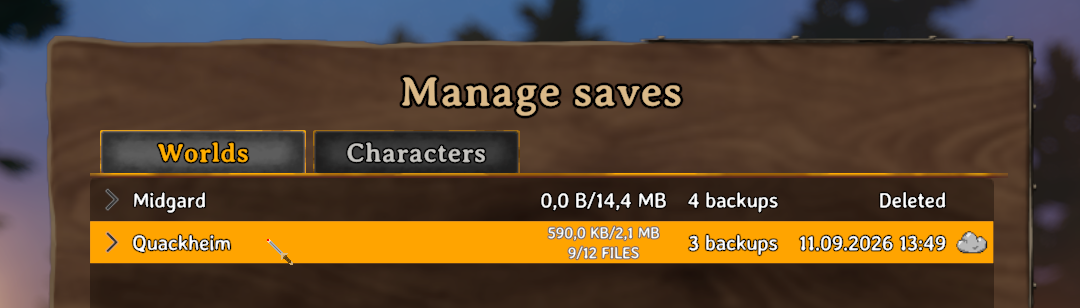
- Select the world you want to upload to the server, and choose Move to local.
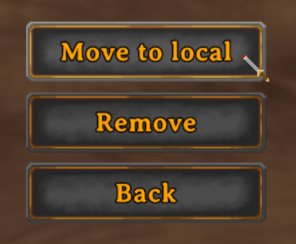
This step is what fills the world’s folder with every file you need to upload. Skip it and the folder will be missing pieces.
Find Your Local Files
On PC through Steam, local worlds live at:
C:\Users\<username>\AppData\LocalLow\IronGate\Valheim\worlds_local
Each world is stored in its own folder inside that path. Xbox console players cannot export their console saves as files, since consoles cannot host, but playing the same save on a PC works through the Microsoft Store version of the game, which keeps its server files under:
C:\XboxGames\Valheim\Content\Server.
Uploading Your World
Now that you have your local world files we can upload them to your Nitrado server. You have two options when moving your files, and we’ll cover both for you so you can choose which method you want to use: an external FTP program or our internal File Browser.
Upload via FTP
An FTP client such as FileZilla can copy your entire world folder over in one drag:
- Open your server’s web interface and stop the server.
- Connect to your Nitrado server’s FTP using your FTP Credentials in your Dashboard.
- Drag your entire world folder into the server’s valheim > savedata > worlds_local directory.
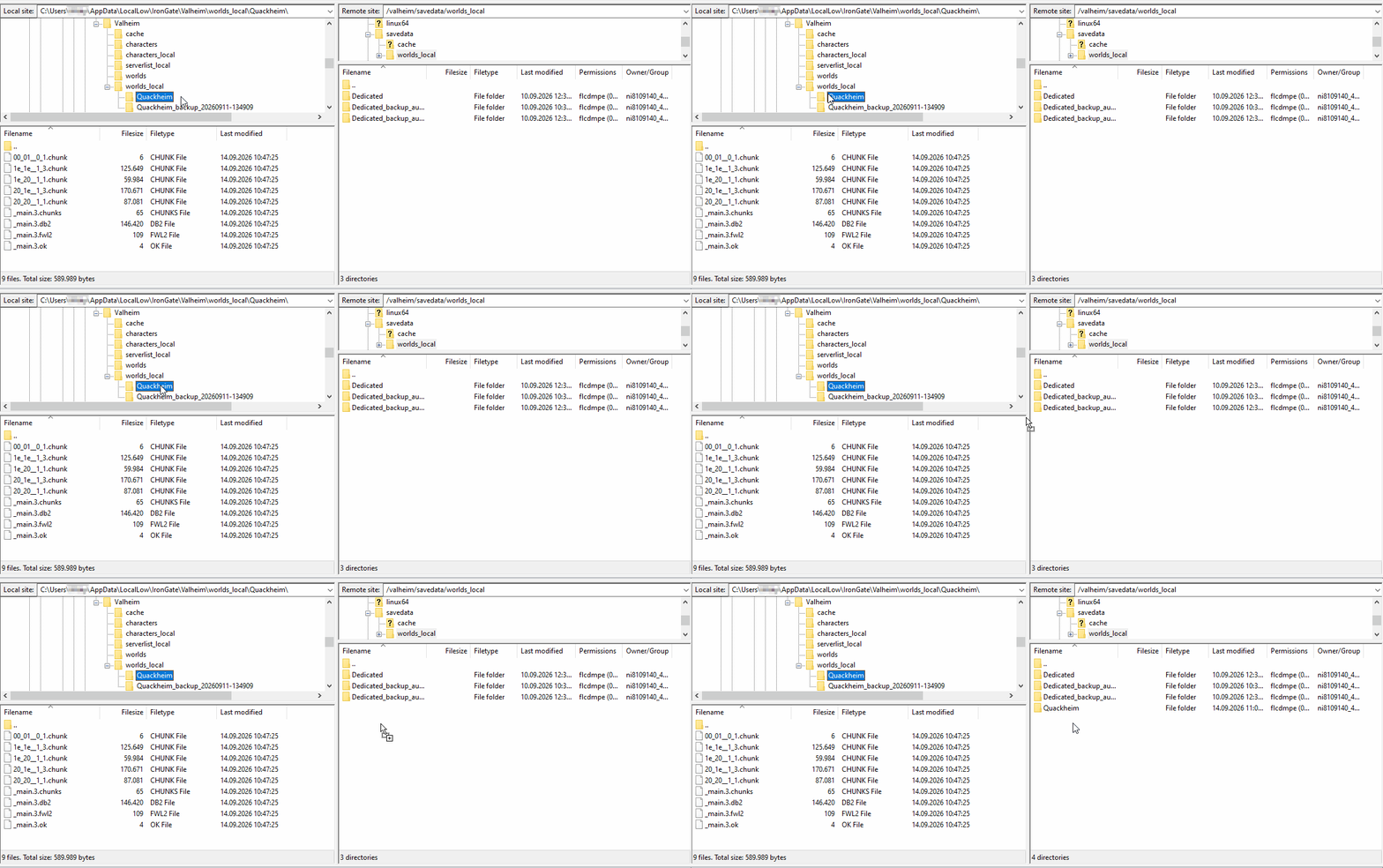
- Restart your server and join your uploaded world.
Upload via File Browser
The File Browser inside your Nitrado web interface only accepts individual files, not folders. However, you can still upload your world by creating a new directory for it and uploading the world files into that folder.
- Open your server’s web interface and stop the server.
- Navigate to Tools > File Browser.
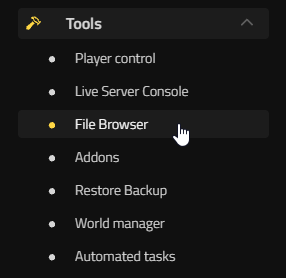
- Go to the valheim/savedata/worlds_local/ directory.

- Click on New directory, give it the same name as your world, and open the folder you just created.

- Click on Upload file and upload just the files from inside your local world folder into your server world folder.

- Restart your server and join your uploaded world.
Match the World Name
To make sure your uploaded world loads correctly, the World name field must match the name of your world folder exactly. This applies whether you uploaded the world through FTP or File Browser.
- Navigate to Settings > General in your web interface.
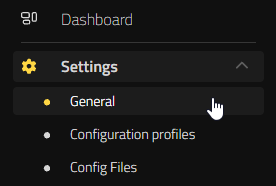
- Set the World name field to exactly match your world folder name.

- Select Save changes at the bottom right.
- Restart the server to load your uploaded world.
Your server should now load your existing world instead of generating a new one.
Frequently Asked Questions
Do I need to move my world to local if it already saves there?
No. Move to Local only matters for worlds still living in Steam Cloud. If your world already saves to your PC, its folder already has every file it needs.
What happens if my folder name doesn’t match my world name?
The server treats the mismatch as a new world and generates one using whatever name is set in Settings > General, instead of loading the world you uploaded.
Can I upload just the individual files instead of the whole folder?
Yes, through our File Browser. Upload every file from inside your local world folder directly into your server’s worlds_local folder.
Does my existing world still work with the Deep North content?
Yes. Existing worlds carry over cleanly, and new biome generation only applies to areas you haven’t explored yet.
Your Saga Continues
With your world folder uploaded and the name matched correctly, your Valheim server is ready to pick up right where you left off. Your builds, discoveries, and progress are all back in place, so you can return to the world you’ve been shaping without starting over. Gather your friends, step through the gates, and get back to exploring, building, and surviving wherever your journey left off.
Finding Your Local World Files
- The World Folder
- Move Your World to Local
- Find Your Local Files
Uploading Your World
- Upload via FTP
- Upload via File Browser
- Match the World Name
Frequently Asked Questions
- Do I need to move my world to local if it already saves there?
- What happens if my folder name doesn’t match my world name?
- Can I upload just the individual files instead of the whole folder?
- Does my existing world still work with the Deep North content?
Your Saga Continues